
Gmail to Slack Integration Your Practical Guide
A practical guide to Gmail to Slack integration. Learn four simple methods to connect your inbox, automate workflows, and boost team productivity.Connecting Gmail to Slack isn't just a technical trick; it's about building a central nervous system for your team's communication. It transforms those static, isolated emails into dynamic conversations right inside the chat channels where you get work done. This simple connection cuts out the constant, frustrating hop between your inbox and team chats, making sure critical updates are seen and acted on—fast.
Why Connecting Gmail and Slack Is a Smarter Way to Work
Let's be honest, toggling between your email and Slack all day is a massive productivity drain. Important client messages get lost in the shuffle, sales leads go cold sitting in one person's inbox, and project updates are missed simply because they landed in the wrong place. This isn't a small inconvenience; it’s a crack in your team’s workflow that leaks time and money.

The real magic of a Gmail to Slack integration is turning email from a siloed, one-to-one tool into a collaborative powerhouse. Instead of one person reading a crucial email and then having to re-type a summary for the team, the email itself lands directly in the relevant Slack channel.
Unlocking True Team Collaboration
Picture this: a customer support email pops up instantly in your #support-tickets channel. The whole team sees it. They can jump into a thread to discuss the best way to handle it, and someone can claim ownership without ever leaving Slack. That kind of transparency smashes bottlenecks and dramatically speeds up how quickly you can help your customers.
This isn't just a nice idea; it actually works. Companies that fully embrace Slack see a 32% drop in emails and a 27% reduction in meetings. By adding Gmail to the mix, you can also be selective, filtering emails by sender or subject so only the truly important stuff creates a notification. This helps your team stay focused instead of getting buried in noise. You can dive deeper into Slack's impact on business efficiency to see the numbers for yourself.
The goal is to move conversations from private inboxes to shared, searchable channels. When an important email becomes a Slack message, it gains context, visibility, and a clear path to action.
From Static Messages to Actionable Work
A solid integration does more than just copy and paste the text of an email. It pulls in the entire context—attachments and all—and drops it right into your team’s workspace. I've seen this be a game-changer for so many teams:
- Sales Teams: Automatically forward every inquiry from the website's "Contact Us" form into a
#new-leadschannel. No lead is left behind, and follow-up is almost instant. - Project Managers: Get all stakeholder feedback emails sent directly to the right project channel, like
#project-zeus, keeping every conversation organized and in one place. - Legal and Finance: Route sensitive documents like invoices or legal notices to private, locked-down channels like
#finance-invoicesor#legal-reviewfor secure, focused discussion.
At the end of the day, connecting these two platforms is about reclaiming your team's focus. It slashes the mental tax of constantly switching apps and gives your people the power to make faster, better-informed decisions inside the tool they already live in.
Choosing How to Connect Gmail and Slack
Picking the right way to connect Gmail and Slack really comes down to what you’re trying to accomplish. There’s no single "best" method. It depends on your team's needs, how much control you want, and how comfortable you are with different tools.
You've got four main options, each with its own pros and cons. Think of it like picking a tool for a job—sometimes a simple screwdriver is all you need, but other times you need a full-power drill. Let's walk through them so you can find the perfect fit.
The Official Slack and Google Apps
For most teams just dipping their toes into a Gmail to Slack integration, the official tools are the place to start. They're built to be straightforward and get you up and running in minutes.
- Slack Email App: This is a native Slack feature that’s surprisingly useful. It generates a unique email address for any channel or DM. It’s perfect for simple, automated workflows. For instance, you can have all emails sent to
invoices@company.comautomatically pop up in your#financechannel. Set it once and forget it. - Slack for Gmail Add-on: This little gem lives right inside your Gmail interface. It adds a button that lets you manually push important emails over to Slack with a click. This is my go-to when I only need to share specific, high-value emails—like a major client update or a hot sales lead—without spamming a channel with everything.
Here’s what the Slack for Gmail Add-on looks like on the Google Workspace Marketplace.
This official add-on gives you a direct, one-click way to send emails from your inbox into any Slack conversation, attachments and all. It keeps the context right where you need it.
Automation Platforms for Smarter Workflows
When you need to do more than just see an email in Slack, you’ll want to look at automation platforms like Zapier or Make. These tools are the glue between your apps, letting you build custom, multi-step workflows without touching a line of code.
Imagine an email with an invoice arrives. Instead of just forwarding it, you could build a workflow that posts it to the #finance channel, creates a task for your bookkeeper in Asana, and adds a new row to a Google Sheet for tracking. This is where you can start automating entire business processes that kick off with a single email.
The real power of platforms like Zapier and Make is connecting multiple apps in one go. An email stops being just a message and becomes a trigger for a whole series of actions across all the tools you use.
Going Fully Custom with Code
For teams with a developer on hand or very specific requirements, building a custom solution is the ultimate power move.
- Google Apps Script: This is a JavaScript platform that lets you write code that runs on Google’s own servers. You could, for example, build a script that reads incoming emails, pulls out specific data like a customer ID or order number, formats it nicely, and then posts a custom-tailored message to a Slack channel using its API. This gives you total control but definitely requires some coding chops.
The world of Gmail-Slack integrations has really blossomed. The official apps are a great starting point, but the ecosystem is full of powerful third-party tools that do so much more than basic forwarding. Slack's own directory boasts over 2,600 apps, all made possible by robust APIs that allow for these deep, custom setups. This is a game-changer for customer success teams, who can instantly share client emails in dedicated channels for the whole team to see and act on. You can find more great insights on how these integrations improve team communication on gmelius.com.
Let's Get Your Integration Set Up
Alright, time to roll up our sleeves and connect Gmail to Slack. The great thing is, you can get a powerful, time-saving connection up and running in just a few minutes, no matter which route you take. We'll walk through the most popular methods, from simple add-ons to more advanced automation.
This diagram lays out the main paths you can take. Think of it as a roadmap, starting with the simplest connections and moving toward more flexible, custom workflows as your needs evolve.
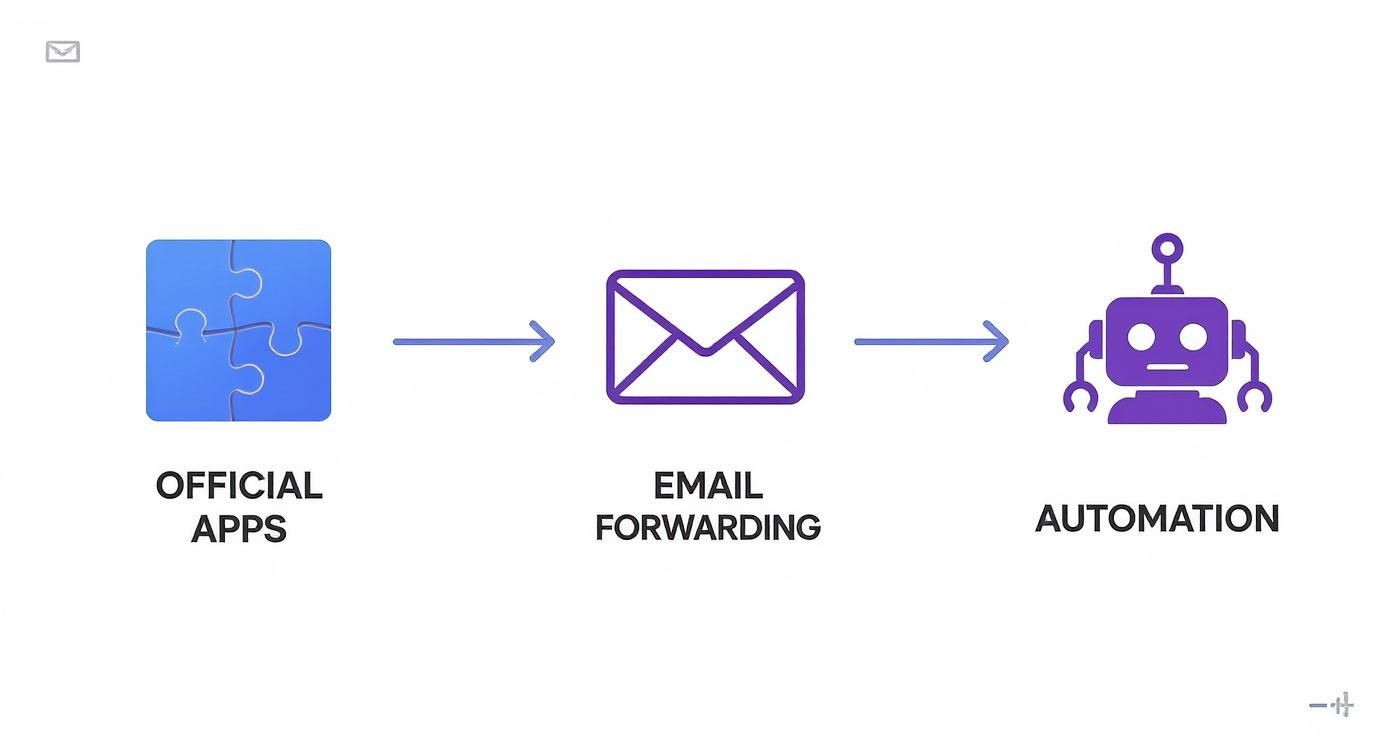
As you can see, each method builds on the last, giving you more power and customization along the way.
Using the Official Slack for Gmail Add-on
For most people, the official add-on is the quickest win. It lives right inside your Gmail inbox, giving you a manual but incredibly useful way to push specific emails or entire conversations into Slack. No more copy-pasting.
To get started, just head over to the Google Workspace Marketplace and search for "Slack for Gmail." Click Install and grant it the necessary permissions. Once it’s set up, you'll see a new Slack icon in the sidebar on the right side of your Gmail inbox.
Now, open any email you want to share. Click that Slack icon, and a small window will pop up. From here, you can:
- Choose the Destination: Pick the exact public channel, private channel, or even a direct message where you want the email to go.
- Add a Message: Give your team some context. Something like, "Hey @team, check out this great feedback from our new client!" makes it much more actionable.
- Include Attachments: With a simple toggle, you can send any files from the original email directly into the Slack conversation.
This method is perfect for those one-off situations where you need to maintain control and avoid flooding a channel with every single email.
The "Set-and-Forget" Email Forwarding Method
If you’re looking for a more automated, hands-off approach, Slack’s built-in email forwarding feature is a hidden gem. Every single channel and direct message in your Slack workspace can have its own unique, secret email address.
To find it, open the channel you want to send emails to, click the channel name at the top, and navigate to the Integrations tab. From there, choose Send emails to this channel. Slack will generate a unique email address for you to copy.
Next, pop over to your Gmail settings. Go to the Forwarding and POP/IMAP tab and click Add a forwarding address. Paste the unique Slack channel email here. Gmail will send a confirmation code to that Slack channel—just grab the code from the message in Slack and paste it back into Gmail to verify.
Pro Tip: Don't just forward everything. That's a recipe for a noisy, ignored channel. Instead, create a specific filter in Gmail. For example, set up a rule to only forward emails that contain the word "invoice" in the subject or are from a specific sender like "support@yourcrm.com." This keeps your channel clean, relevant, and useful.
Building a Custom Workflow with Zapier
When a simple forward isn't enough, automation tools like Zapier or Make open up a world of possibilities. They let you create multi-step workflows—often called "Zaps" or "Scenarios"—that connect Gmail and Slack with all the other apps you use.
Let’s imagine a common workflow for a sales team. The goal: when a new lead email arrives with the subject "New Website Inquiry," we want to instantly post a formatted message in the #new-leads channel and tag the sales manager.
- Set Up the Trigger: In Zapier, choose Gmail as your trigger app. Select the New Email Matching Search trigger. For the search string, you could enter
subject:"New Website Inquiry". This tells Zapier to only watch for those specific emails. - Configure the Action: Next, choose Slack as your action app and select the Send Channel Message action.
- Customize the Message: This is where the magic happens. You can pull data directly from the email to create a dynamic, custom message. For example, your Slack message could be: "🔥 New Lead! @sales.manager - Inquiry from:
[Sender Name]Subject:[Subject]. Please follow up ASAP!"
This simple workflow ensures no lead ever falls through the cracks. It turns a passive email into an immediate, actionable task for the right person.
The Power User's Play: Google Apps Script
For those who are comfortable with a little bit of code, Google Apps Script offers total control and is completely free. You can write a script that does exactly what you want, without relying on third-party tools.
It's easier than it sounds. Just open any Google Sheet, go to Extensions > Apps Script, and you can paste in a script that uses Slack's Incoming Webhooks feature. After creating a webhook URL in your Slack settings, a basic script can be set to run on a timer—say, every 15 minutes—scanning for new emails with a specific label and posting them to a channel. This is the ultimate power-user move for a truly custom gmail to slack integration.
Putting Your Integration to Work: Real-World Scenarios
Connecting Gmail to Slack isn't just a tech trick; it's about building smarter, faster workflows that actually help your team get things done. Once you've built that bridge, your inbox stops being a place where emails go to die and becomes a dynamic, collaborative hub where the right information finds the right people instantly.
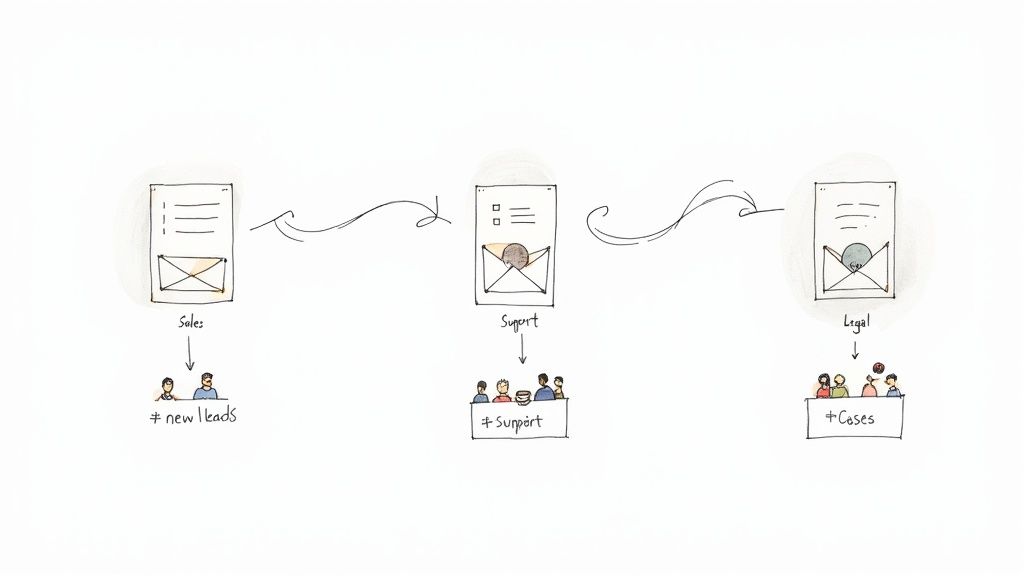
The real magic happens when you move beyond a generic setup and tailor the gmail to slack integration to solve your specific business headaches. Let’s walk through a few practical examples that you can put into action today.
Speed Up Your Sales Cycle
In sales, speed is the name of the game. A lead that has to wait hours for a reply is a lead that's already talking to your competitor. This is where a simple, automated workflow can make a huge difference.
Picture this: every time someone fills out your website's "Contact Us" form, the email automatically posts to a #new-leads channel in Slack. Just like that, a silent email delivery becomes a loud, unmissable alert for your entire sales team.
- Instant Awareness: The moment a lead comes in, everyone sees it. No more waiting.
- Team Huddle: Sales reps can jump into a thread to discuss who’s the best fit to handle the inquiry. Someone can "claim" the lead by simply reacting with a 🙌 emoji.
- No Lead Left Behind: An inquiry no longer gets lost in a single person's inbox just because they're in a meeting or out for the day.
This one change alone can dramatically reduce your response time, helping you guide prospects through the sales funnel before they lose interest.
Create a Cohesive Customer Support Hub
Support teams are always juggling requests from a dozen different places. By piping your main support inbox (like support@yourcompany.com) into a dedicated #support-tickets channel, you create a command center for solving customer issues together.
When a customer's email appears in the channel, it’s no longer just one person’s problem—it’s the team's. This encourages "swarming," where multiple agents can offer advice, pull up relevant help docs, and work together on the perfect reply in a thread. The result is consistently faster resolutions and much happier customers.
The goal is to shift from a one-on-one email conversation to a transparent, many-to-one collaborative effort. You'll see ticket times drop and the quality of your support skyrocket.
Workflows for Specific Industries
This integration is a game-changer for almost any industry that depends on timely communication.
- Real Estate: An agent can create a Gmail filter that forwards every new lead from Zillow directly to a
#new-clientschannel. The entire brokerage sees it, ensuring someone is always free to book a showing right away. - Law Firms: A paralegal can forward critical emails from opposing counsel into a private channel like
#case-file-123. This creates a clean, searchable record of all communication for the legal team assigned to that specific case. - Clinics: Front-desk staff can route appointment confirmations and new patient forms to a
#front-deskchannel. This makes coordinating schedules and preparing for arrivals a seamless process, all without being glued to their email.
Each of these examples takes an important piece of information that was once siloed in an inbox and makes it visible, actionable, and collaborative. That transparency is what turns a simple tool into a true business advantage.
Keeping Your Integration Secure and Efficient
https://www.youtube.com/embed/tFf_FPgEqAY
Hooking up powerful tools like Gmail and Slack can be a game-changer for productivity. But let's be honest, it's not just a "set it and forget it" kind of thing. A poorly managed gmail to slack integration can quickly spiral out of control, leading to confidential data leaks or channels so clogged with alerts that nobody pays attention anymore.
It all starts with locking down permissions. Both Google Workspace and Slack give you fine-grained control over who can install and manage apps. As a rule of thumb, you should limit this power to just a few trusted administrators. This one move can stop team members from accidentally creating an insecure forwarding rule that exposes sensitive client information to the entire company.
Preventing Data Spills and Notification Overload
Accidentally piping a confidential email into a public Slack channel is a genuine risk. Just imagine an email with financial projections or a client’s personal data popping up for everyone to see. To sidestep that nightmare, build your security strategy around a few key practices:
- Go Private: For anything even remotely sensitive, always send the notifications to a private, invite-only Slack channel. This is non-negotiable.
- Get Specific with Filters: If you’re setting up automated forwarding in Gmail, be surgical with your filters. Don't just forward every single email from a client. Instead, create a rule to only forward emails with "Project Update" or "New Inquiry" in the subject line.
Managing the sheer volume of information is just as critical as securing it. We've all seen it happen—a channel gets so flooded with automated messages that people just start tuning it out. At that point, the integration isn't helping; it's just adding to the noise.
The goal is to keep the signal high and the noise low. Your Slack channels should be a hub for actionable information, not a firehose of every single email that lands in an inbox.
To keep things running smoothly, make a habit of revisiting your automated workflows. Check in with your team and ask, "Are these notifications actually useful?" If a channel has become a dumping ground, it's time to tighten up those Gmail filters or maybe even pause the automation to rethink your approach. A great integration should feel like a helpful assistant, not a constant interruption.
Got Questions About Connecting Gmail and Slack?
Even with a perfect setup guide, you're bound to have questions when you start connecting two powerhouse tools like Gmail and Slack. Getting them to talk to each other is one thing; making that connection genuinely useful without creating more digital noise is the real goal.
Let's dive into some of the questions I hear all the time.
A big one is, "Can I reply to emails directly from Slack?" The short answer is, not really. At least, not with the simple, built-in methods. Think of the native Slack Email app or Gmail’s forwarding feature as a one-way street—they’re fantastic for getting alerts into Slack, but they can't send a reply back to the sender's inbox.
If you're looking for that kind of two-way conversation, you'll need to explore more advanced tools built specifically for that purpose.
How Do I Keep My Slack Channels From Getting Junky?
This is probably the most important question. Nobody wants their #new-leads channel clogged with newsletters and spam. The secret isn't in Slack, it's in Gmail's own filtering system. You have to be the gatekeeper.
Before you even think about forwarding an email, build a rock-solid filter in Gmail first. You can get super specific:
- Filter by Sender: Only allow emails from a crucial client domain or a specific contact form.
- Filter by Subject: Look for keywords like "New Inquiry," "Demo Request," or "Support Ticket."
- Filter by Recipient: If you use an alias like
sales@yourcompany.com, set the filter to only forward emails sent to that exact address.
A tight filter is your best defense against noise. It guarantees that only the emails that truly matter—the ones your team needs to act on—actually land in your Slack workspace.
Finally, what's the best option for people who aren't super technical? Hands down, it's the Slack for Gmail Add-on. It’s the easiest path forward. There's no complex setup; you just install it from the Google Workspace Marketplace. This add-on gives you total manual control, letting you push an important email to Slack with a single click. It's the perfect starting point for anyone just dipping their toes in.
Stop missing calls and losing leads. CallCow provides an AI voice agent that answers your phone 24/7, books appointments directly into your calendar, and ensures every opportunity is captured. See how it works at https://callcow.ai.