
A Practical Guide to Google Drive Slack Integration
Unlock a more efficient workflow with our guide to the Google Drive Slack integration. Learn setup, best practices, and automations that save time.Connecting Google Drive with Slack does more than just link two apps; it creates a single, powerful hub where your team's conversations and files live together. Think of it as turning your cloud storage from a passive filing cabinet into an active, collaborative workspace right inside Slack.
Why Connecting Google Drive and Slack Actually Matters
Let's get past the obvious "it saves time" cliché. The real magic of this integration is how it kills context switching. Instead of constantly bouncing between your chat window and your file folders, everything you need is in one spot. This creates a genuine single source of truth for every project, from kickoff to completion.

This simple connection means updates on your documents—like comments, edits, or access requests—become part of the conversation. They’re no longer just passive notifications you might miss in an email inbox; they're actionable items your team can jump on immediately.
A Central Hub for Modern Teams
When you consider the sheer scale of these platforms, their connection feels almost essential. Google Drive has over 2 billion users, and Slack is the daily communication tool for more than 42 million people. Bringing them together is a no-brainer for keeping massive teams, or even small ones, on the same page.
Here’s a look at the core benefits you get by bringing your documents directly into your communication channels.
| Benefit | Impact on Team Workflow |
|---|---|
| Reduced Friction | Instantly grant file access to everyone in a channel without ever leaving the conversation. No more "Can you share this with me?" emails. |
| Enhanced Visibility | Get real-time notifications for Google Doc comments, suggestions, and access requests right in Slack, keeping projects moving. |
| Improved Searchability | Slack indexes the content of shared Google Drive files, so you can find what you need from a document right from the Slack search bar. |
These features combine to create a smoother, more efficient workflow for everyone involved.
The biggest win isn't just convenience; it's momentum. When a teammate requests access to a design mock-up and you can approve it from Slack in five seconds, the project never stalls. That's the real power here.
This integration finally puts an end to the endless hunt for the "latest version" of a file. Every share, comment, and update is captured right alongside your team’s discussion, creating a living, breathing archive of your project's entire history. For teams split between the office and home, that kind of clarity is priceless.
Getting Your Integration Up and Running in Minutes
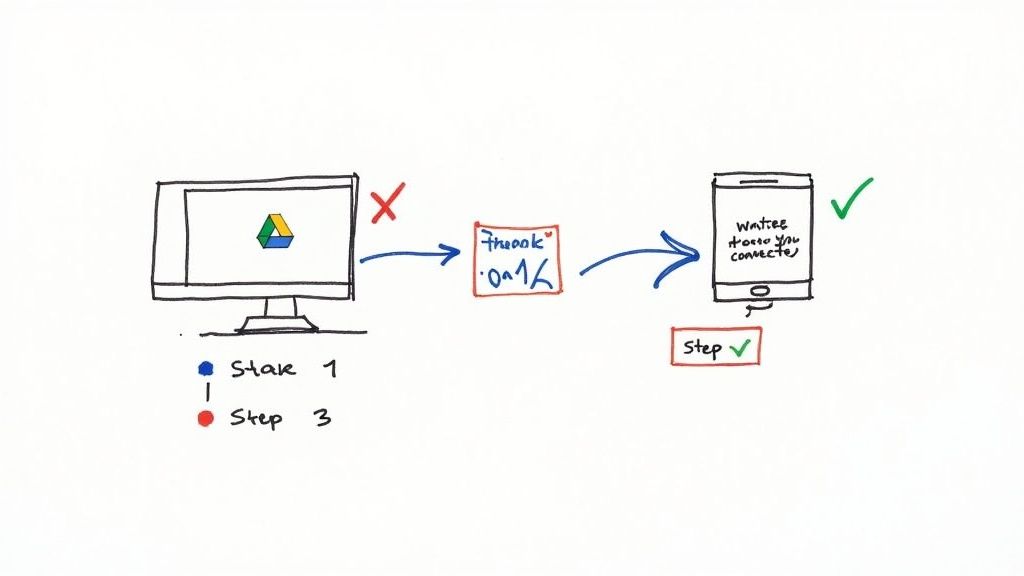
Getting Google Drive and Slack to talk to each other is surprisingly painless. You can be up and running in just a couple of minutes, and there are two easy paths to get there.
The first route is to head straight to the source: the Slack App Directory. Just search for "Google Drive," hit the big Add to Slack button, and follow the on-screen instructions. This is the best way to go if you're a workspace admin who wants to set the integration up for the whole team from the get-go.
The other method is more natural and happens right in your workflow. The very first time you paste a Google Drive link into a Slack channel, Slackbot will pop up with a helpful prompt asking if you’d like to connect your account. It’s a smart, in-the-moment way to get things synced up.
Authenticating Your Accounts
No matter which way you start, you'll need to grant Slack permission to access your Google Drive. You'll be sent to a familiar Google sign-in page to choose the right account and approve the connection. This is the handshake that makes everything work.
Pro Tip: It's incredibly common to accidentally connect the wrong Google account, especially if you juggle personal and work logins. Before you click "Allow," take a second to double-check that you're authorizing the Google account where your work files actually live.
Google will then show you exactly what the Slack app wants to do. It’s all about transparency. Typically, the permissions include:
- Viewing files and folders in your Drive
- Managing files created by the app itself
- Getting notifications about file activity
You need to approve these for the magic to happen. Granting these permissions is what allows Slack to import files, handle sharing, and—most importantly—send you those real-time updates when someone comments on a doc or requests access. Once you click Allow, you're all set and will be bounced right back to Slack.
Connecting on Desktop vs. Mobile
Setting this up on your phone is just as easy as on your computer. The core steps are identical, but the look and feel will be adapted for your mobile screen.
When you initiate the connection on the Slack mobile app, the authentication will likely open in your phone's default browser. From there, you just pick your Google account, review the permissions, and give it the green light.
The app will then seamlessly redirect you back to your Slack conversation. Best of all, the integration is completely synced across devices. A file you share from your phone will be perfectly accessible and managed when you get back to your desktop, making sure your Google Drive Slack integration keeps up with you, wherever you're working.
Turn Slack into Your Google Drive Command Center
Once you have the Google Drive Slack integration up and running, it's time to move past just dropping links into channels. Think of Slack as the new mission control for all your documents. This connection transforms your cloud storage from a passive filing cabinet into an active, breathing part of your team's daily conversations.
Instead of breaking your focus, switching tabs, and navigating to Google Drive to start a new document, you can now create one right from the channel where the idea first sparked. It's a small change that makes a huge difference in keeping projects moving and ensuring everyone who needs to see a new file, does.
Create and Manage Files Without Leaving the Conversation
Picture this: your marketing team is spitballing ideas for a new campaign in their #marketing-campaigns channel. The energy is high. Normally, someone would have to say, "Okay, I'll go make a Google Doc for the brief and share it back."
Not anymore. They can just type the slash command /gdrive create right there in the channel.
A simple pop-up appears, letting them name the file and pick whether it's a Doc, Sheet, or Slide. The best part? The integration immediately posts a link to this brand-new file back into the channel, so the team can jump in and start collaborating instantly.
This isn't just about saving a few clicks; it's a genuine productivity booster. When Slack first rolled out this deep integration, early adopters saw a 37% acceleration in decision-making and a 30% jump in overall team productivity. These aren't just vanity metrics; they represent real time saved and faster project turnarounds. You can dig into more of these workflow improvements in the Slack admin updates.
The real win here is context. When a document is born directly inside a project channel, its purpose and history are baked in from the start. No more mystery files or wondering, "Wait, why did we create this again?"
Kill Friction with Smarter Permissions and Feedback
One of the biggest drags on any project is dealing with file access. We've all been there—you share a link, only to get a flood of "I need access" emails. The integration handles this beautifully by turning permission requests into simple, actionable Slack notifications.
When someone in a channel clicks a link to a file they can't open, you get a prompt right in Slack to adjust the sharing settings.
With a single click, you can grant them the right level of access:
- Viewer: They can see the file but can't touch it.
- Commenter: Perfect for feedback rounds, letting them add comments and suggestions.
- Editor: Gives them the keys to the kingdom with full editing rights.
This completely cuts out the email back-and-forth that kills momentum. A sales manager can share a new proposal in the team channel, and if a new rep needs access, the manager approves it in seconds without ever leaving Slack. The deal keeps moving.
It works just as smoothly for feedback. When someone leaves a comment on one of your Google Docs, you'll see it as a threaded reply in Slack, right under the original file link. A designer shares a new ad creative, and the team’s feedback stacks up neatly in one organized thread. This creates a crystal-clear, documented history of every decision made, completely changing the game for how teams review and approve work.
How Different Teams Use This Integration in the Real World
The real magic of connecting Google Drive and Slack happens when you see how teams bend it to their will. It's not some rigid, one-size-fits-all tool. Instead, think of it as a flexible framework that adapts to your team's unique rhythm, whether you're closing a deal, designing a new feature, or onboarding the next star employee.
Let's look at some real-world examples I've seen play out.
From Campaign Kickoff to Final Delivery
For a bustling marketing agency, the entire lifecycle of a campaign can unfold within a single client channel. When a new project kicks off, the account manager doesn't need to open a new tab. They just type /gdrive create right in Slack to spin up a new campaign brief.
The link gets shared automatically, and the creative team dives in, leaving comments directly on the Google Doc. Those comments then pop up as threaded replies in Slack, so the account manager can approve designs or suggest tweaks without ever leaving the conversation. It keeps everything—the project history, feedback loops, and final assets—neatly organized and searchable in one spot.
Keeping Specialized Teams in Sync
Now, let's switch gears to a software development team. Their world might revolve around a complex project roadmap built in a Google Sheet. Once they share that sheet in their #dev-team channel, it becomes the single source of truth.
When a product manager bumps up a release date or adds a new feature to the backlog, the integration can ping the channel with an update. This kind of immediate visibility is crucial. It stops engineers from working off an outdated plan and prevents the miscommunications that cause frustrating, costly delays.
An HR department provides another perfect example. Onboarding new hires usually means wading through a sea of paperwork.
- An offer letter is spun up from a Google Doc template and shared securely in a private channel with the hiring manager for a quick final review.
- The employee handbook, living in Drive, is dropped into the
#new-hireschannel for easy access on day one. - Permission requests for training materials in Drive trigger instant Slack notifications, making for a smooth and welcoming first week.
This integration isn't just a nifty feature; it reflects a fundamental shift in how we work. With so many of us in hybrid or fully remote setups, the need for tools that bridge the digital gap has never been more critical.
In fact, teams in these environments see a 23% faster resolution for internal support requests when they use integrated tools like this one. It's a powerful reminder that connecting your core platforms has a direct, measurable impact on how responsive and efficient your team can be. You can dive deeper into these trends in Slack usage to see how they're shaping the modern workplace.
Closing Deals and Wowing Clients
Finally, picture a fast-paced sales team. When a rep drafts a proposal in Google Docs for a big-ticket client, they share it in a private deal channel. This gives their manager an instant heads-up to review the doc and leave comments in real time.
That rapid feedback loop means proposals get out the door faster and look sharper. Once the client signs, the executed contract is saved to a shared Drive folder, and the link is posted back in the channel. The entire deal—from the first draft to the final signature—is perfectly archived right where the conversation happened.
This is how the Google Drive Slack integration evolves from a simple tool into an essential part of the modern team’s toolkit.
Going Beyond File Sharing: How to Automate Your Workflow
Sharing files and sorting out permissions is a great start, but the real magic happens when you let the Google Drive Slack integration automate the repetitive, mind-numbing parts of your day. This is the shift from just reacting to notifications to building a proactive system that works for you—often without touching a single line of code.
You can get going right inside Slack with its built-in Workflow Builder. It’s a surprisingly powerful tool that lets you cook up simple automations based on triggers. For instance, imagine a new project channel like #project-phoenix gets created. You can set up a workflow that instantly spins up a matching Google Drive folder and drops the link right into the channel. Just like that, every new project has a dedicated spot for its files from day one.
Automated workflows are fantastic for keeping different departments in sync, ensuring information moves where it needs to without someone having to manually pass it along.
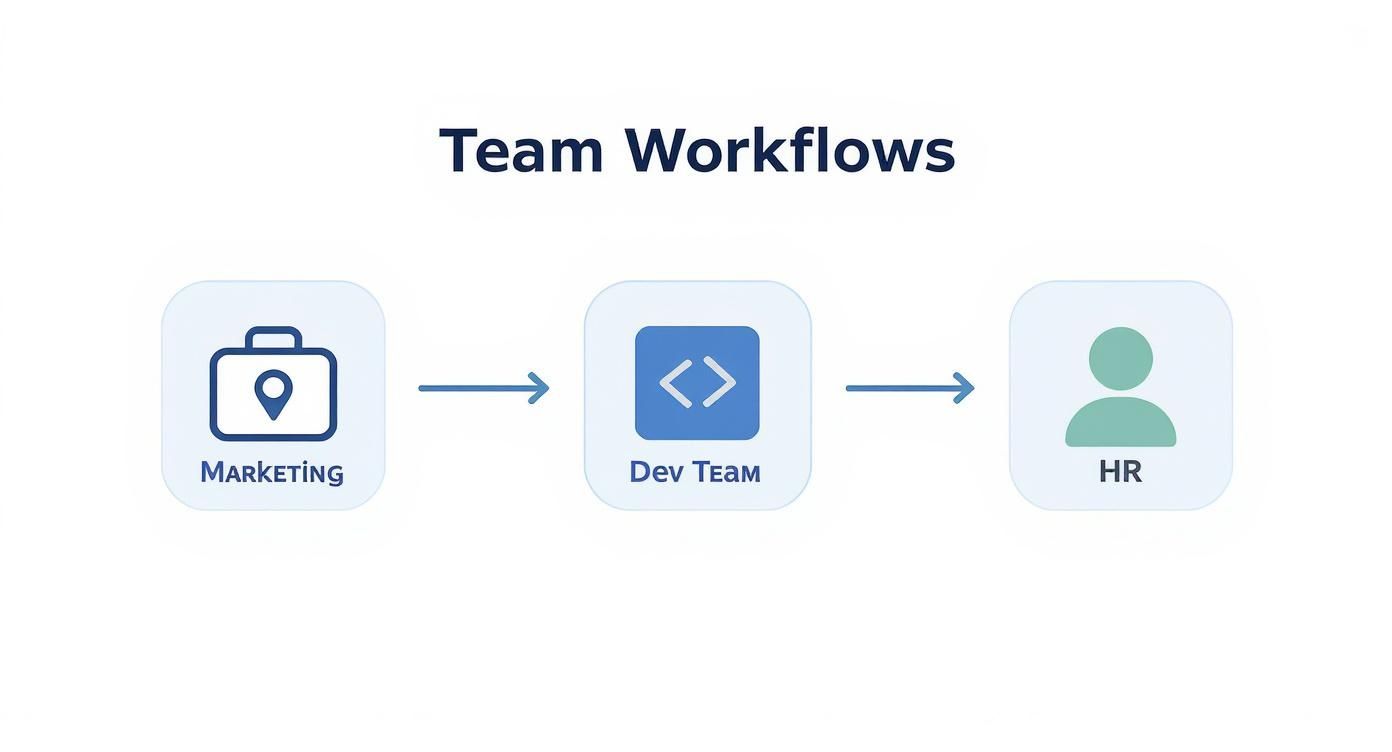
This kind of setup means a trigger in one team's process can automatically start the next step for another, cutting down on those frustrating delays and manual handoffs.
Upping Your Automation Game with Zapier
When you need to build something more complex, third-party tools like Zapier completely change the game. Zapier acts as a universal translator between Slack, Google Drive, and thousands of other applications. It lets you construct multi-step "Zaps" that can handle seriously sophisticated tasks.
Instead of just creating a folder, you can build a sequence that does so much more. Take a sales team, for example. They could create a Zap where reacting to a message in their #leads channel with a specific emoji (like a document icon 📄) kicks off a whole chain of events:
- Zapier sees the emoji reaction in the
#leadschannel. - It then grabs a specific Google Doc template for a new client proposal.
- Next, it creates a fresh copy of that template, automatically renaming it with the client's name pulled from the Slack message.
- Finally, the link to this new, ready-to-edit proposal is posted back into the original Slack thread.
What was once a five-minute, multi-step chore becomes a single, split-second action.
The point of automation isn't just about shaving a few minutes off your day. It’s about creating a reliable, consistent system that gets rid of human error and lets your team concentrate on the work that actually needs their brainpower.
Designing Your First Automated Workflow
Getting started doesn't mean you have to build a giant, complicated machine. Just look for a small, repetitive task your team does over and over. Think about the trigger (what starts the process?) and the action (what do you want to happen?).
Here are a couple of simple ideas to get you started:
Trigger: A new message with an attachment is posted in the
#invoiceschannel.Action: Automatically save that PDF attachment to a specific "Client Invoices 2024" folder in Google Drive.
Trigger: A new row is added to a Google Sheet that tracks customer feedback.
Action: Post a quick summary of that feedback into the
#customer-successchannel for the whole team to review.
These small wins are the foundation of a seriously efficient operation. By linking these simple triggers to actions, you build a frictionless bridge between your team's conversations in Slack and their documents in Google Drive, creating a workspace that’s both connected and genuinely smart.
Troubleshooting and Keeping Your Collaboration Secure
Even the most reliable tools, like the Google Drive Slack integration, can hit a bump in the road. You might run into a notification that goes missing or a file that won't grant access. The good news is these are usually small hiccups you can fix in a few clicks.
But beyond fixing minor glitches, the real goal is to create a secure environment where your team can share and collaborate without putting your data at risk.
A common complaint is that notifications for comments or file requests just don't show up. Before you dive into complex troubleshooting, check the simple stuff first. Go to the Google Drive app in your Slack sidebar, click the "Home" tab, and take a look at your notification settings. You’d be surprised how often they've just been accidentally toggled off.
Getting a Handle on File Permissions
Another classic issue is the dreaded "access denied" wall. A teammate clicks a link you shared in a channel, only to be blocked. This almost always happens because the file's sharing settings in Google Drive are too restrictive. The Slack integration respects Google's permissions—it can't magically open a locked door.
To keep this from bogging down your team's workflow, you need a clear game plan.
- Make Shared Folders the Standard: If you have a Slack channel for "Project Phoenix," create a matching shared folder in Google Drive. Grant access to the entire project team right from the start. Now, any file dropped in there is instantly accessible to the right people.
- Teach the Difference: Make sure everyone on your team understands the power they wield with Viewer, Commenter, and Editor roles. This simple bit of training prevents someone from accidentally giving a client full editing rights to a draft that was meant to be read-only.
- Run a Quarterly Check-up: Once a quarter, have an admin do a quick audit of the sharing permissions on your most critical folders. It’s a simple way to catch any settings that are too open before they become a real problem.
The sweet spot is making sharing easy, but not careless. When you set up smart folder structures and educate your team, you take the friction out of collaboration while keeping your data safe.
Locking Down Your Workspace
Good security is all about setting smart defaults. As a Slack admin, you have the power to configure the Google Drive app for the entire workspace. This is your chance to set a baseline for how files are shared, preventing sensitive information from being accidentally exposed to the world.
For example, you can and should restrict the integration's ability to automatically make files public. Think of it as putting up guardrails.
Ultimately, a secure and efficient setup is a blend of smart tech configuration and good old-fashioned team training. By tackling the small issues as they pop up and building clear, security-first sharing habits, your Google Drive and Slack integration will be the productivity powerhouse it’s meant to be.
Still Have Questions? Let's Clear a Few Things Up
Even after a smooth setup, a few questions always pop up about how the Google Drive and Slack integration works in the real world. Getting these answers sorted out now will help your team really get the most out of it and sidestep some common hiccups.
Let's dive into a few of the most frequent questions I hear.
Can I pipe notifications into a private channel?
You bet. You can send Google Drive notifications—comments, access requests, new shares, you name it—to any private channel you're a member of. For things only you need to see, you can even have them sent directly to you as a direct message from the Google Drive app.
This is a lifesaver for managers who need to approve access requests without spamming the main project channel. It’s also great for keeping sensitive discussions tucked away in a small, private group.
The ability to index the full text of your Google Drive files right inside Slack is a huge advantage. You're no longer just searching for a filename; you can pinpoint a specific phrase inside a 20-page document, which is a massive time-saver.
How does Slack search my Google Drive files?
This is where the magic really happens. Once you connect the two, Slack’s search function gets a serious power-up. It doesn’t just look at file titles; it indexes the full content of the Google Drive files you share, including Docs, Sheets, and Slides.
What does that mean for you? You can type a keyword into the Slack search bar and instantly find the exact document you're looking for, even if the file name is a total mystery. Slack basically becomes a super-smart search engine for all your team's collective knowledge.
What's the best way to manage permissions for a whole channel?
This is a big one. You can't just apply one blanket Google Drive permission to an entire Slack channel, but there’s a much smarter way to tackle this. The best practice I've found is to create a dedicated, shared Google Drive folder for that specific project or team.
- Give all the channel members access to that one shared folder.
- From then on, any file you pull from that folder to share in the channel will automatically have the right permissions.
Setting it up this way from the start cuts out the endless stream of one-off access requests and keeps everything flowing without interruption.
Stop missing calls and letting potential clients slip away. CallCow provides a 24/7 AI voice agent to handle your inbound calls, book appointments, and follow up with leads so you never lose another opportunity. Set up your AI agent in 5 minutes.