
Integrate Confluence with Slack The Smart Way
Learn how to integrate Confluence with Slack using native apps and custom automations. A practical guide to boost team collaboration and productivity.Let's be real—the easiest and most powerful way to link Confluence with Slack is through the official Confluence Cloud for Slack app. This isn't just a simple notification tool. It lets you pipe updates from your Confluence spaces directly into the right Slack channels, search for docs on the fly, and share pages without ever leaving your conversation. It essentially turns Slack into your team's command center for knowledge.
Why Connecting Confluence and Slack Is a Game Changer
We've all been there. You're deep in a Slack discussion, and someone asks for a link to a document. The frantic search begins, derailing the conversation and killing momentum. This constant app-switching is the exact headache that a Confluence-Slack integration cures.
This is about more than just convenience. It’s about building a smarter workflow where your team’s deep knowledge and its fast-paced conversations can finally coexist.
When you bring Confluence pages directly into your Slack channels, you stop treating your documentation like a dusty library. Instead, it becomes a living, breathing part of your team's daily rhythm.
Bridge the Gap Between Conversation and Knowledge
Important decisions and brilliant ideas often get buried in the endless scroll of a Slack channel. An integration acts as a bridge, making sure those valuable nuggets are captured and stored in Confluence before they disappear.
Think about it: a product manager clarifies a feature spec in a thread. With the integration, they can instantly add that critical detail to the official project page right from Slack. It’s seamless.
This simple connection turns Confluence from a static repository into a dynamic resource that evolves with every conversation. It ensures that knowledge doesn't just vanish when a chat is archived.
This isn't a small thing. We're tackling a massive productivity killer here. In fact, some studies show that 45% of workers feel their productivity takes a major hit from constant context switching. You can dive deeper into this challenge in recent industry studies on thena.ai. By keeping your communication and documentation in one view, you give your team their focus back.
This integration is more than a technical setup; it's a strategic shift. You’re making your team smarter, better aligned, and way more efficient by turning your documentation from a "place you have to go" into information that "comes to you."
Key Benefits of an Integrated Workspace
Hooking these two powerhouses together delivers some immediate and tangible wins, no matter what your team does—from managing real estate deals to drafting legal briefs.
Here are the biggest advantages you'll see:
- Everyone Stays in the Loop: Important page updates, new comments, and freshly published articles get pushed to the right Slack channels automatically. No more "Did you see my update?" messages.
- Less App-Hopping: Your team can find, preview, and even comment on Confluence pages without leaving Slack. This keeps the conversation flowing and maintains focus.
- Quicker, Smarter Decisions: When answers are just a quick search away inside your chat tool, decisions get made faster and are based on the most up-to-date information.
- A Stronger Documentation Culture: Making it effortless to share and discuss documentation encourages everyone to treat it as a core part of the workflow, not just a chore to be done later.
Choosing the Right Integration Path for Your Team
Before diving into the setup, let's take a step back. There's no single "best" way to connect Confluence and Slack; the right choice really boils down to your team’s needs, how comfortable you are with tech, and what you’re trying to accomplish.
Figuring this out now will save you a ton of headaches later. We'll look at the three main ways you can get this done: using the official Confluence app, setting up simple webhooks, or bringing in powerful automation tools like Zapier or Make.
The Three Main Integration Methods
Each path strikes a different balance between ease of use, power, and how much you can customize it. Getting a feel for these differences is the key to picking the right tool for the job.
The Official Confluence Cloud App: This is your most straightforward option and the one most people go for. It's built and maintained by Atlassian, so it works seamlessly. It gives you deep, two-way communication—you can share pages with nice-looking previews, get detailed notifications, and even reply to comments without ever leaving Slack. No code required.
Custom Webhooks: This route is a bit more technical, but it gives you a lot of control. Think of webhooks as simple, one-way pings. You can set them up to send a notification to a Slack channel whenever something specific happens in Confluence, like a page with the label "Final-Approval" gets updated. It's perfect for creating very specific, targeted alerts.
Third-Party Automation Platforms: Tools like Zapier, Make, or Workato are the ultimate connectors. They act as a powerful middleman, letting you build complex workflows that link Confluence and Slack with hundreds of other apps. For instance, you could create a "Zap" that triggers when a new page is published, automatically messages the right Slack channel, and adds a follow-up task in Asana.
The big question is this: Do you need a plug-and-play experience (Official App), a simple custom alert (Webhook), or a sophisticated workflow that connects multiple tools (Third-Party Platform)?
To make this even clearer, let's put these options side-by-side.
Comparing Confluence and Slack Integration Methods
Here’s a quick comparison to help you choose the best option based on your team's technical skills, budget, and desired functionality.
| Method | Best For | Complexity | Flexibility |
|---|---|---|---|
| Official App | Most teams, especially those on Confluence Cloud looking for a feature-rich, easy-to-use solution. | Low | Medium |
| Webhooks | Teams needing highly specific, one-way notifications without the overhead of a full app. | Medium | High |
| Third-Party | Teams that want to connect Confluence and Slack as part of a larger, multi-tool automation workflow. | Medium | Very High |
Honestly, for most teams, starting with the official Confluence Cloud app is a no-brainer.
It handles over 80% of what most teams need right out of the box and takes just a few minutes to set up. You can always get fancier with webhooks or Zapier down the road if a specific need pops up. This way, you get the core benefits of the integration right away and start making your team's life easier immediately.
Getting Started with the Official Confluence Slack App
For most teams, the official Confluence Cloud for Slack app is the way to go. It's the cleanest, quickest path to connecting your knowledge base with your daily conversations. This is a direct, two-way integration built and maintained by Atlassian, so you know it's secure and loaded with useful features right from the start.
If you’re looking for a setup that just works without any coding, this is your best bet. The whole process takes just a few minutes, and you'll immediately start seeing the value.
Finding and Installing the App
First things first, you need to bring the app into your Slack workspace. The easiest way is to head over to the Slack App Directory and search for "Confluence Cloud." Make sure you pick the one developed by Atlassian.
Click "Add to Slack," and you'll be walked through a quick authorization flow. Slack will ask for permission to talk to your Confluence site. Once you approve, you'll need to log into your Atlassian account to link it with your Slack profile.
This initial handshake is more important than it looks. It ensures the integration respects all your existing Confluence permissions. So, when a link is shared in Slack, people will only see previews and content they’re already allowed to see. No accidental oversharing.
Setting Up Notifications in Your Channels
Now for the fun part. With the app installed, you can start piping relevant Confluence updates directly into specific Slack channels. This is how you keep the right people in the loop without spamming everyone else.
Jump into the Slack channel where you want the updates to appear, like #project-apollo or #marketing-team. In the message box, simply type this slash command:
/confluence connect
A pop-up will appear, asking you to pick your Confluence site and the specific space you want to connect to this channel. For example, you’d link your "Project Apollo" Confluence space to the #project-apollo Slack channel.
From there, you get to decide exactly what you want to hear about. The controls are pretty detailed, which is great for managing noise.
- New Pages & Blogs: Get an alert when someone publishes a new page or blog post.
- Page Updates: Find out when an existing page is edited.
- Comments: See notifications for new comments or replies.
A little pro-tip from experience: start lean. For a busy project channel, stick to notifications for new pages and major updates. For a smaller, tight-knit team, adding comment notifications can really speed up feedback loops. You can always add more later.
This diagram lays out the three main ways you can tackle this integration, from the official app to more customized webhook setups.
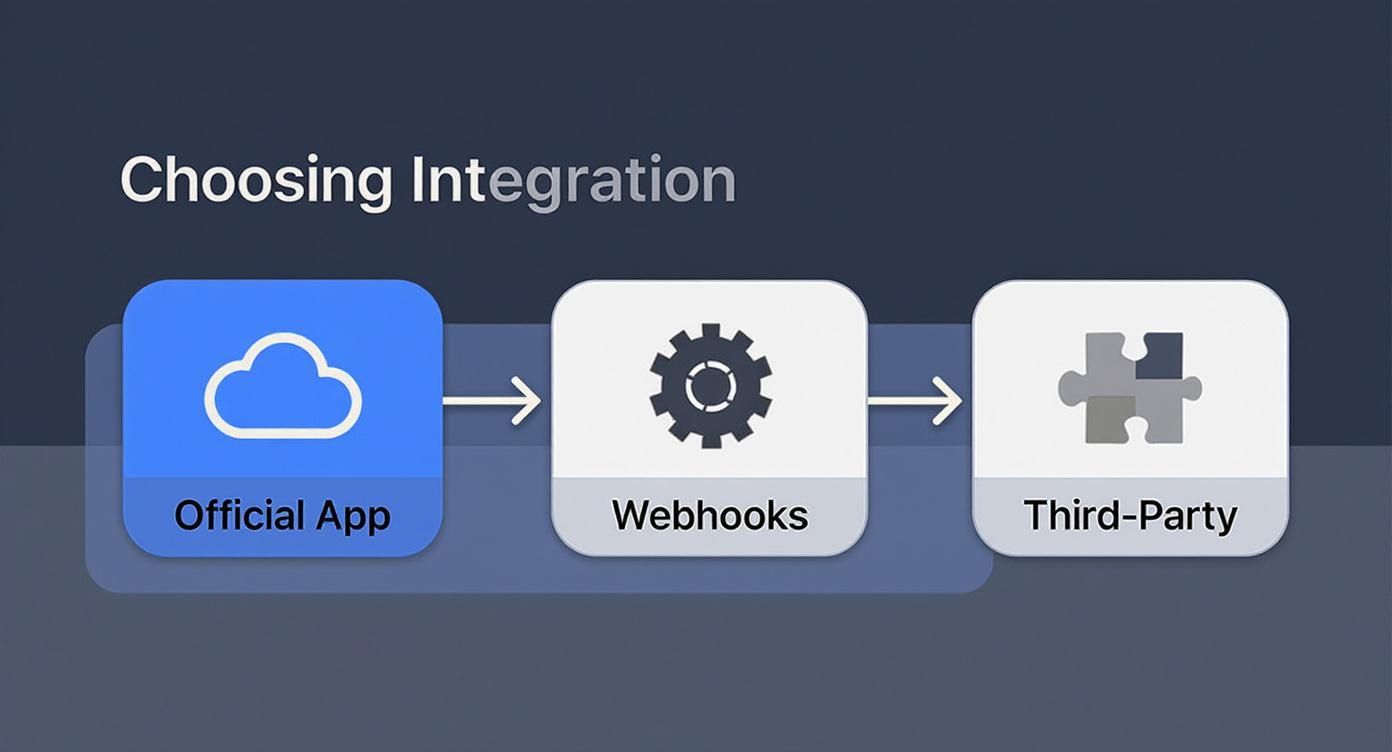
As you can see, the official app hits that sweet spot of powerful features and dead-simple setup for most teams.
Using the App's Best Features in Slack
Once you're connected, this integration is about so much more than just notifications. It essentially turns Slack into an interactive window into your Confluence knowledge base.
One of the most valuable features is the rich link preview. Whenever someone pastes a Confluence link into a channel, the app automatically unfurls it. You get the page title, a short summary, the author, and when it was last updated. It provides instant context so people don't have to click away from the conversation just to know what's being discussed.
You can also act on those previews right from Slack. Add a comment, "like" a page to show your approval, or even "watch" it to get future updates. It’s a huge time-saver that keeps work flowing. And don’t forget the /confluence search [your query] command—it lets anyone pull up a document in seconds, making your team’s brainpower accessible right from chat.
Taking Your Integration to the Next Level with Custom Automation
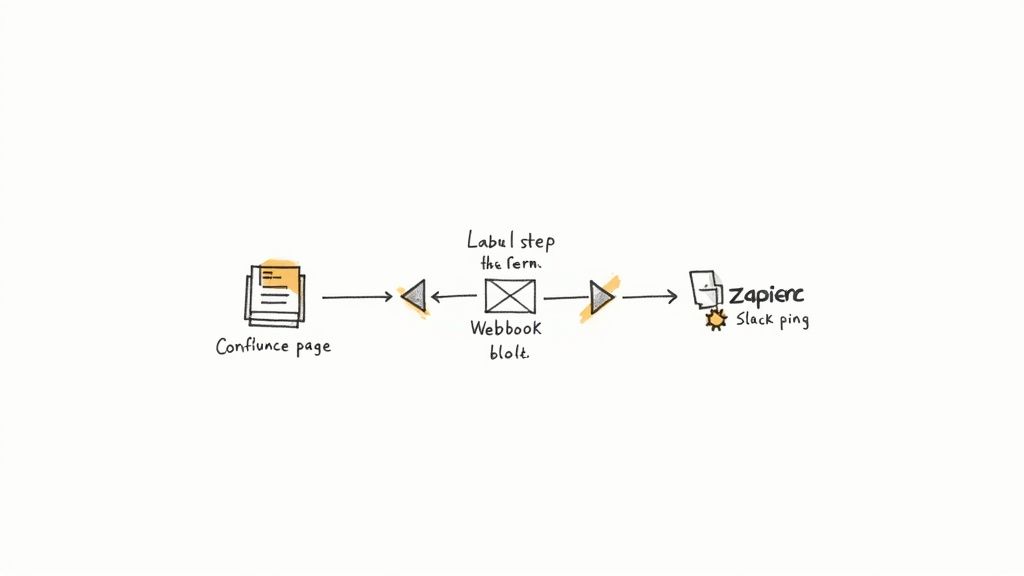
The official app is a great starting point, but what happens when your team needs more than just the basics? When you want to build a truly intelligent workflow, it's time to look beyond standard notifications. This is where you can start connecting the dots between all your tools, crushing manual tasks, and creating automated processes that genuinely save your team time and headaches.
This approach is all about getting granular. You can define the exact triggers and actions that mirror how your team actually works, turning a simple notification tool into a core part of your operations.
Using Webhooks for Ultra-Specific Alerts
For highly specific, one-way pings, webhooks are an absolute game-changer. Think of them as custom tripwires you set up in Confluence. When a very specific condition is met, it instantly sends an automated message to a Slack channel you choose.
This is the perfect solution when the out-of-the-box notifications are just too noisy. Instead of getting an alert for every single page update, you can dial in the focus.
For instance, a design team could set up a webhook that only fires when a Confluence page is updated and has the label "final-mockup." That alert goes straight to their #design-review channel, making sure the right people see it immediately without getting bogged down by notifications for minor copy edits.
My Take: Webhooks are fantastic for event-driven pings. They let you cut through the clutter and guarantee that only the most important, high-priority updates land in front of your team in Slack.
The precision here is what makes it so powerful. You can create these custom alerts for almost any specific event, keeping everyone in sync without drowning them in chatter.
Building Complex Workflows with Zapier and Make
When your process involves more than just Confluence and Slack, it's time to bring in the big guns: third-party automation platforms like Zapier or Make. These tools are like the ultimate connectors, letting you build sophisticated, multi-step workflows that string several actions together across different apps. This is where you move from simple alerts to true, hands-off process automation.
Let's picture a sales team that keeps all its client meeting notes in Confluence. With Zapier, they could build a "Zap" that does all this automatically:
- The Trigger: A new page is published in their "Meeting Recaps" space in Confluence.
- Action 1: A summary message and a link to the new page are posted in the
#sales-winsSlack channel. - Action 2: A follow-up task is automatically created in their CRM, like Salesforce or HubSpot.
- Action 3: A new row is added to a Google Sheet that tracks all client meetings for the quarter.
That one single action in Confluence sets off a chain reaction that updates three other systems, and nobody has to lift a finger. Automating data workflows like this has a huge impact. In fact, it has been shown to eliminate up to 90% of marketing-related IT support tickets simply by cutting down on manual data entry errors. You can dig into more of these productivity stats and see how teams are using this integration on improvadio.io.
By taking these repetitive tasks off your team's plate, you give them back the time and mental energy to focus on the work that actually matters.
Making the Integration Work for Your Team
Flipping the switch to connect Confluence and Slack is the easy part. The real challenge—and where you get the biggest payoff—is weaving it into the fabric of how your team actually works. Honestly, a successful integration has less to do with the tech and more to do with people and process.
Without a plan, that helpful stream of updates you imagined quickly turns into channel noise. That’s the fastest way to get everyone to hit mute, defeating the whole purpose. The secret is to be deliberate from the get-go.
Establish Clear Notification Rules
To keep the signal high and the noise low, you need a strategy. Don't just dump every Confluence space update into a general Slack channel and call it a day. Get your team together and figure out what’s actually worth an alert.
You might want to create specific channels for different types of Confluence activity. For instance, a main project channel might only need notifications for new pages and major edits, while a smaller, more focused channel could track every single comment.
A great way to start is by creating a dedicated channel like #confluence-updates or #project-docs. This keeps all the documentation chatter in one place, so your main team channels stay focused on conversation and decisions. It lets people choose the level of detail they want to follow.
A great integration isn't measured by how many notifications it sends, but by how many of them are actually helpful. The goal is clarity, not more clutter.
Show, Don’t Just Tell
Just sending a memo saying, "Hey, we have a new integration!" won't cut it. You have to show people how it makes their work easier. I've found that a quick, informal training session or even a simple screen recording can make a world of difference for adoption.
Walk them through the features that will solve their real-world problems.
- For your engineers: Show them how their
#feature-squadchannel can get an instant ping the moment a product requirements doc is updated. No more building from outdated specs. - For your support team: Demonstrate how the
/confluence searchcommand lets them pull up knowledge base articles and share them with customers, all without leaving Slack. This is a huge time-saver that directly impacts response times.
Focus on practical wins that connect to their daily grind. When people see how a new tool directly benefits them, they're much more likely to embrace it. Turning a technical setup into a cultural win is all about making work simpler and keeping everyone on the same page, effortlessly.
Common Questions About the Confluence Slack Integration
Even with a smooth setup, a few questions always pop up. When you're connecting two powerhouse tools like Confluence and Slack, it's smart to know the ropes, especially around permissions and those little glitches that can throw a wrench in the works.
We've rounded up the questions we hear most often from teams just like yours. Getting these answers straight from the start will help everyone on your team feel confident using the integration.
Can I Control Confluence Permissions from Slack?
This is a big one, and the short answer is no. The integration is built to be secure, which means it strictly honors the permissions you've already set up in Confluence. It doesn't create a backdoor.
If someone shares a Confluence link in a Slack channel, only users who already have permission to view that page in Confluence will see the full preview. Anyone without access won't see a thing. This is a critical security feature, not a bug. It prevents sensitive information—like a draft of a new HR policy or confidential project details—from accidentally leaking into a public channel.
The bottom line is your Confluence permissions are the single source of truth. The integration mirrors them, it doesn't override them, keeping your sensitive information secure by default.
What Is the Real Difference Between Cloud and Server Apps?
While both apps bridge the gap between your wiki and your chat, the main difference comes down to how they're managed and updated.
- Confluence Cloud App: Atlassian handles everything. Updates, new features, and security patches are rolled out automatically. You don't have to lift a finger.
- Server/Data Center App: This one is on you (or your admin). You have to install, manage, and update the app on your own infrastructure. Typically, new features hit the Cloud version first.
Functionally, they're very similar. But if you want the latest and greatest features with zero maintenance, the Cloud app is the way to go. It's always a good idea to check the official Atlassian documentation for your specific version to see what's included.
Why Are My Confluence Link Previews Not Working?
It's definitely frustrating when you paste a link and get... nothing. No beautiful preview, just a plain URL. Nine times out of ten, it's a simple fix.
If your link previews aren't showing up, run through this quick checklist:
- Is the app in the channel? First, make sure the Confluence app has been added to that specific Slack channel. You can do this by typing
/confluence connect. - Is the user connected? The person posting the link needs to have their personal Confluence and Slack accounts linked. The app will usually prompt them to do this the first time they share a link.
- Is a firewall blocking it? (Self-hosted only) If you're on a Server or Data Center instance, your network's firewall might be preventing Confluence from talking to Slack's servers. This is one for your IT team to check.
Running through these steps usually gets things working again in no time.
Stop letting missed calls turn into missed opportunities. CallCow provides a 24/7 AI voice agent to answer every call, schedule appointments, and follow up with leads so you can focus on your work. See how it works.