
Tags in Zendesk: Master Tagging Workflows for Smarter Support (tags in zendesk)
Discover how to use tags in zendesk to automate workflows, improve reporting, and organize support with a practical tagging strategy.Think of Zendesk tags as smart, digital sticky notes. You can attach them to almost anything in your support system—tickets, users, even entire organizations—to add crucial context at a glance. But they're much more than simple labels.
Tags are the engine that powers a truly organized and efficient Zendesk workspace. They turn messy, unstructured conversations into clean, organized data you can actually use.
What Are Zendesk Tags and Why Do They Matter?
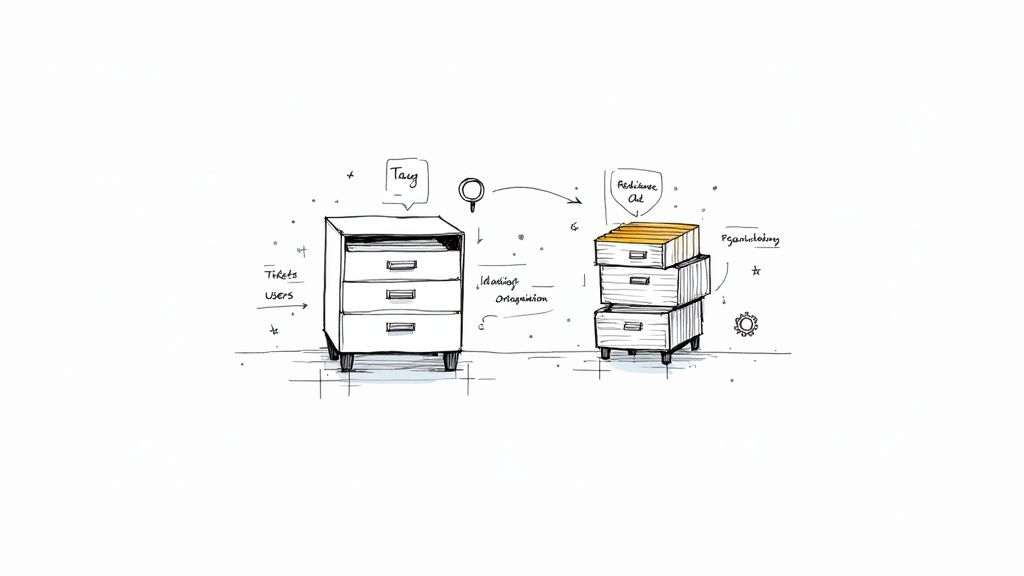
Imagine your Zendesk account is a giant filing cabinet stuffed with every customer conversation you've ever had. Without a good system, finding anything specific would be a nightmare. That's exactly what tags solve. They're the labels on the folders, telling you what's inside without you having to open every single one.
When you add a tag like billing_issue, enterprise_customer, or escalate_tier2 to a ticket, you’re providing instant context. Anyone who sees that ticket immediately knows what it's about, how important the customer is, and what needs to happen next—all before reading a single message.
This simple act of labeling is where the magic begins. Tags are the fuel for Zendesk's most powerful features: automations, triggers, custom views, and reporting. They let you build a support system that isn't just a mailbox, but an intelligent machine that actively helps you solve problems.
The Strategic Value of a Tagging System
A smart tagging strategy is what separates a reactive support team from a proactive one. Instead of having agents sift through a cluttered inbox, you can build rules that automatically sort and route tickets based on their tags. This means the right tickets get to the right people, right away, which is a game-changer for your resolution times.
The core benefit of using tags in Zendesk is transforming abstract customer issues into concrete data points. This allows support managers to identify trends, measure performance, and make informed decisions backed by real evidence.
Let's say you start seeing a bunch of tickets with the tag feature_request_dashboard. Suddenly, you have solid proof to show your product team what customers are asking for. This creates a powerful feedback loop that helps the whole company build better products.
A consistent tagging system unlocks some major benefits:
- Improved Efficiency: Automations and triggers driven by tags handle the busywork, so your agents can focus on the tough problems that need a human touch.
- Deeper Insights: When you run reports based on tags, you start to see patterns you’d otherwise miss—like a specific bug that keeps popping up or a product area that confuses users.
- Enhanced Customer Experience: Tags like
urgentorvip_clientcan push tickets to the front of the line, giving your most important customers the fast service they expect. - Greater Consistency: When everyone uses the same tags, your data becomes clean and reliable. No more guessing games or inconsistent categorization.
Let's look at how these tags function across different parts of the Zendesk platform.
The Role of Tags Across Zendesk Functions
The table below breaks down how tags are applied in various Zendesk features to drive specific actions and outcomes.
| Zendesk Function | Primary Use of Tags | Example Outcome |
|---|---|---|
| Triggers | To initiate immediate, event-based actions on new or updated tickets. | A ticket with the urgent tag is automatically assigned to a senior support agent. |
| Automations | To perform time-based actions on tickets after a certain period. | If a ticket tagged pending_customer_reply isn't updated in 48 hours, an automated reminder is sent. |
| Views | To create custom ticket queues for agents based on specific criteria. | A view is created for all tickets tagged tier_2_support and billing, showing only specialized issues. |
| Reporting | To segment and analyze ticket data for trends and performance metrics. | A report shows that tickets tagged login_problem have spiked by 30% this month. |
| Macros | To apply a set of pre-defined actions, including adding tags, with a single click. | An agent uses a "Password Reset" macro that replies with instructions and adds the password_reset tag. |
As you can see, tags are woven into the very fabric of Zendesk, connecting different features to create a cohesive and intelligent workflow.
Ultimately, tags in Zendesk are the foundation of an organized help desk. They're searchable almost instantly and can be used to filter ticket histories, giving you a clear picture of customer needs over time. You can learn more about how to analyze tag data on the Zendesk help site. Without a solid tagging plan, you’re flying blind and missing out on valuable insights that could make your support team smarter and more effective.
The Complete Lifecycle of a Zendesk Tag
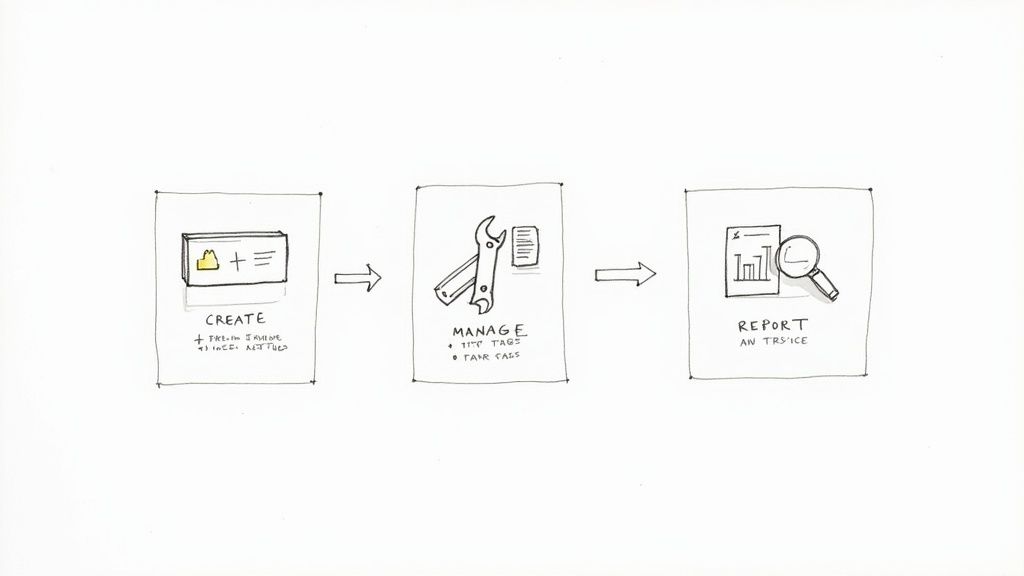
To really get the hang of tags in Zendesk, it’s useful to see them as having their own little lifecycle. They get created, they do their job, and eventually, they become part of your historical data. Understanding this journey—from creation to reporting—is the secret to building a support system that’s clean, scalable, and full of insights.
The whole process boils down to three main stages. It starts with how a tag is born, moves into how you keep it organized, and finishes with how it fuels powerful reports. Let's walk through each step.
Stage 1: Creating New Tags
A tag’s life begins the second it’s added to a ticket, user, or organization. This can happen in a few different ways, and each method has its own strengths. The best systems use a smart mix of manual control and automation to make sure the right context gets added at the right time.
Here are the main ways tags come to life:
- Manual Application by Agents: The most straightforward method. An agent simply types a new tag into the ticket's tag field. This is perfect for those unique, one-off situations an automation wouldn't catch, like
ceo_mentioned_competitor. - Application via Macros: Agents can use pre-made macros to fire off a bundle of actions with a single click, which often includes adding tags. A "Password Reset" macro, for example, could add the
password_resettag while pasting in a canned response. - Automatic Addition with Triggers: Triggers are your workhorses. They can automatically add tags based on rules you set up when a ticket is created or updated. For instance, if an email lands from a VIP's domain, a trigger can instantly slap on the
vip_customertag. - Integration with Other Apps: Tools like CallCow can automatically apply tags based on what happens during a call. A call that goes to voicemail could get tagged
missed_call_voicemail, while a successful appointment booking gets taggedappointment_booked.
Stage 2: Managing Your Tag Ecosystem
Once tags are out in the wild, they need to be managed. If you don't, you'll quickly end up with a chaotic mess of typos, duplicates, and outdated terms. This "tag bloat" wrecks your reports and makes your automations unreliable.
Good tag management is all about consistency and tidiness. A well-run system means every agent uses the right tag for the right situation, keeping your data clean and trustworthy.
A disorganized tag system is like trying to find a specific book in a library with no catalog. The information is there, but it's nearly impossible to locate. Consistent management is the catalog that makes your data accessible and useful.
Here’s how you keep your tags in check:
- Establish Naming Conventions: Pick a format and stick with it. Something like
category_subcategory_detail(e.g.,billing_invoice_incorrect) works well. This stops you from ending up with bothbilling-issueandbilling_issue. - Create a Tag Dictionary: Keep a central document that lists all your official tags and explains when to use them. This is a lifesaver for training new agents and a handy reference for the whole team.
- Conduct Regular Audits: At least once a quarter, pull a report on tag usage. Find and merge any redundant tags and get rid of any that are no longer relevant to your workflows.
- Restrict Tag Creation: This is the big one. In your Zendesk settings, you can stop agents from creating new tags on the fly. This forces everyone to use the approved list and is the single most effective way to prevent tag chaos.
Stage 3: Reporting with Tag Data
This final stage is where all your hard work pays off. Using Zendesk Explore, you can build powerful reports and dashboards that slice and dice your ticket data by tags. This is where you turn everyday support interactions into real, actionable business intelligence.
By analyzing trends in your tag data, you can spot recurring problems, measure how well your team is doing, and find opportunities to improve. The data gives you solid proof to back up your decisions. A sudden spike in api_error tickets? That’s a clear signal for your engineering team to jump on it. Tracking tags like positive_feedback can help you identify your happiest customers. This step closes the loop, turning simple labels into a true strategic asset.
2. Building an Effective Zendesk Tagging Strategy
Okay, so you know what tags are and how to make them. But just creating tags on the fly is a recipe for disaster. The real magic happens when you build a cohesive strategy around them. Think of it like a blueprint for your entire support operation—it ensures every tag has a clear purpose, every agent is on the same page, and your data stays clean and useful as you scale.
Without a plan, you'll inevitably run into tag bloat. This is a classic Zendesk problem where your tag list becomes a chaotic mess of similar, misspelled, or redundant tags (billing, bill_issue, billing-issue). When that happens, running accurate reports or building reliable automations becomes next to impossible. A smart strategy stops this mess before it starts.
Establish Clear Naming Conventions
Your first move is to decide on a standardized naming convention. This is just a simple set of rules for how every tag should be structured, and it’s the bedrock of a consistent system. One of the most effective methods I've seen is the category_subcategory_detail format.
This simple, hierarchical structure packs a ton of context into a single tag. It’s easy to read, a breeze to filter, and scales incredibly well as your support needs grow. For instance, instead of a vague tag like bug, you could use mobile-app_login_bug. See how much more information that gives you at a glance?
Here are a few real-world examples of this structure:
billing_invoice_incorrect: Instantly tells you the ticket is about an incorrect invoice.product_feature-request_dashboard: Pinpoints a feature request related to the product dashboard.shipping_international_delay: Separates a delay with an international shipment from domestic ones.
Sticking to a consistent format like snake_case (using underscores) or kebab-case (using hyphens) is key. It eliminates confusion and makes your tags a million times easier to search for and manage.
Create a Centralized Tag Dictionary
Once you've got your naming rules down, the next step is to create a tag dictionary. This is just a shared document—a Google Doc or a Confluence page works perfectly—that acts as the single source of truth for all approved tags. It's a simple idea, but the impact is huge.
Your tag dictionary should list every official tag and include a short, simple description of when to use it. This takes the guesswork out of the equation for your agents and ensures everyone is categorizing tickets the same way.
Think of your tag dictionary as a style guide for your support data. It enforces consistency, makes training new agents a breeze, and protects the integrity of your reporting. Without it, you're just letting agents guess, which leads to messy, unreliable data.
This document becomes a go-to resource for everyone, from the new hire on day one to the seasoned pro who needs a quick reminder. It empowers your team to use tags in Zendesk correctly and confidently, which helps them work faster and more efficiently.
Perform Regular Audits to Prevent Tag Bloat
Even the best-laid plans need a little upkeep. A regular tag audit is like spring cleaning for your Zendesk account. The goal is simple: find and get rid of outdated, unused, or redundant tags that are just cluttering up the system.
Set aside some time every quarter to dig into your tag usage reports in Zendesk Explore. You'll be looking for a few specific things:
- Low-Usage Tags: Tags that have only been used a handful of times might be too niche or just one-off issues that don't need a permanent home.
- Redundant Tags: Hunt down tags that mean the same thing (like
refund_requestandrequest_refund) and merge them into one official tag. - Typos and Variations: Look for misspellings or tags that don't follow your naming convention and clean them up.
Getting into a routine of auditing your tags keeps your system lean and ensures your automations, views, and reports are all running on clean, accurate data. This kind of proactive maintenance stops small tag problems from becoming massive data headaches later on.
To make this crystal clear, here’s a look at some common tagging mistakes and how to fix them.
Good vs Bad Tagging Practices
| Poor Practice Example | Why It's a Problem | Best Practice Alternative |
|---|---|---|
urgent, asap, priority |
Subjective and inconsistent. "Urgent" means different things to different people, making it unreliable for routing or reporting. | sla_risk_60_mins |
login, login issue, cant_log_in |
These are all redundant. They clutter the tag list and split your data, making it impossible to see all "login issue" tickets in one report. | account_login_failure |
feature-request-for-the-new-dashboard-reporting-tool |
Way too long and specific. This tag will likely only be used once, creating noise without providing any scalable data. | product_feature-request_dashboard |
Billing (with a capital B) |
Inconsistent capitalization creates duplicate tags (billing vs. Billing) that fragment your data and can break automations. |
billing_invoice_question |
refund |
Too generic. Is it a request? Was it processed? Is it a question about the policy? This tag lacks the context needed for meaningful action. | billing_refund_request |
Avoiding these common pitfalls is half the battle. By focusing on creating clear, consistent, and scalable tags, you set your team—and your data—up for success.
Automating Your Workflows with Tags
This is where all that thoughtful tagging work really pays off. Tags aren't just labels; they're the fuel for Zendesk's automation engine. Think of them as the "if" in an "if-this-then-that" recipe for your entire support process. By using tags in Zendesk as conditions, you can build a smart system that practically runs itself, saving time and keeping everything consistent.
When a tag gets added to a ticket—whether by an agent or an integration—it acts like a trigger. It sets off a chain reaction without anyone needing to lift a finger. You're basically teaching Zendesk how to respond to specific situations, making your whole operation faster and more intelligent.
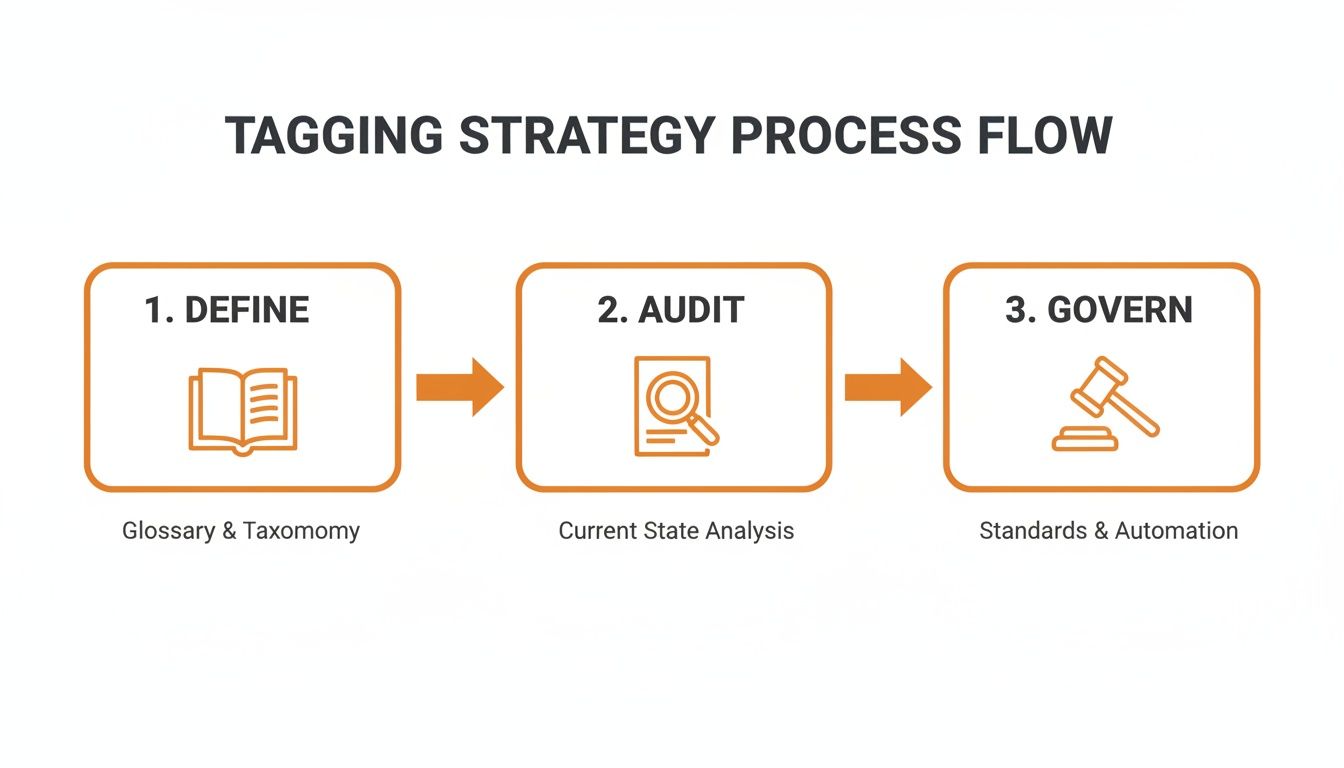
The key is to have a solid strategy from the start. A good system is built on defining what your tags mean, auditing them regularly, and governing how they're used.
Using Tags to Power Triggers
Triggers are your first line of automated defense. They’re rules that fire the second a ticket is created or updated, and tags are the perfect way to tell them exactly when to jump into action.
For example, say a customer emails with the subject "URGENT Billing Problem." You can set up a trigger that spots the word "urgent" and instantly adds the tag urgent_billing.
That little tag becomes a powerful catalyst. The same trigger can then:
- Assign the ticket: Immediately send it to your specialized Finance group.
- Set the priority: Bump the ticket’s priority level straight to "Urgent."
- Notify a manager: Shoot an email alert to the head of the billing department.
This all happens in a flash, before an agent even lays eyes on the ticket. It ensures that critical issues get the attention they need right away, instead of waiting in a queue to be sorted manually.
Driving Time-Based Actions with Automations
While triggers are all about instant reactions, automations are based on time. They run on a schedule, checking for tickets that have been sitting idle for a specific period. And again, tags are what make these rules smart and targeted.
Automations use tags to check a ticket's status over time, preventing issues from falling through the cracks. They are your safety net, ensuring every customer gets a follow-up.
Let's imagine your policy is to follow up with customers if you haven't heard back in two days.
- When an agent replies, they use a macro that adds the tag
no_reply_48hr. - You create an Automation that runs every hour.
- The automation looks for tickets where: Ticket Status is 'Pending' AND Tags contain
no_reply_48hrAND Hours since pending is greater than 48. - If it finds a match, it sends an automated follow-up email and notifies the agent.
This simple workflow ensures no conversation gets lost in limbo, which is a huge win for customer satisfaction and your resolution times.
Creating Smarter Agent Queues with Views
Views are the customized ticket lists your agents live in all day. A well-designed set of views is absolutely essential for keeping your team productive. Tags let you build highly specific queues so agents can focus on the tickets that matter most to them.
Without tags, you're stuck sorting by broad categories like status or group. But with a good tagging strategy, you can create laser-focused views that make a world of difference.
Here are a few powerful views you can build with tags:
- Product Feedback View: Create a list of all unsolved tickets with the tag
feature_request. This gives your product team a direct feed of customer ideas without them having to dig through general support tickets. - VIP Customer View: This queue shows every ticket tagged with
vip_client. It allows your senior agents to prioritize these accounts and deliver that white-glove service. - Escalated Issues View: A view that only shows tickets tagged with
escalate_tier2lets your expert support team see exactly which complex problems need their attention, right now.
By using tags to segment tickets, you turn a chaotic inbox into a set of clean, actionable work queues. It directs your team’s effort exactly where it’s needed, ensuring the right people are handling the right issues.
Using AI for Smarter and Faster Tagging
Manual tagging and even automated rules are great, but they still depend on you to set them up and keep them updated. The next big step in managing tags in Zendesk is bringing in artificial intelligence. AI does the heavy lifting of categorizing tickets with incredible speed and accuracy, going way beyond simple keyword matching to understand what a customer really means.
Think of it this way: instead of an agent having to manually add a bug_report tag or a trigger searching for the word "broken," an AI model can read a complex message and correctly apply the tag all on its own. This frees up your agents and gets rid of the inconsistencies that come with human error.
How AI Changes Ticket Triage
The real magic of AI tagging is its ability to pick up on nuance. An AI can tell the difference between a customer who is just frustrated and one who is about to cancel their subscription, applying tags like churn_risk or negative_feedback with a high degree of confidence. This lets your support system get ahead of problems instead of just reacting to them.
This opens up a ton of possibilities:
- Sentiment Analysis: You can automatically tag tickets as
positive_feedbackorfrustrated_customer. This helps you prioritize who to talk to first or makes sure that glowing review gets passed on to the right team. - Intent Recognition: The AI can figure out the core reason for the ticket—is it a
billing_question, atechnical_issue, or afeature_request? This makes sure the ticket lands in the right agent's queue from the very beginning. - Trend Spotting: When tags are applied this precisely and consistently, you can spot emerging issues almost instantly. A sudden jump in
api_error_503tags is a huge red flag that your engineering team needs to see right away.
With this kind of intelligent sorting, tickets show up in front of the right person, with the right context, faster than ever before. It's how you scale your support operation without burning out your team.
Finding AI Tools in the Zendesk Marketplace
The best part? You don't need to hire a team of data scientists to make this happen. The Zendesk Marketplace is packed with powerful, third-party AI apps that plug right into your existing workflows.
These apps come with pre-built AI models that you can connect to your Zendesk account in just a few minutes, giving your tagging an immediate upgrade.
For example, AI taggers like Easy Ticket AI or Labelf can be found in the marketplace. They connect seamlessly and use pre-configured rules to apply tags, sending a bug_report ticket straight to the engineering team while a password_reset ticket goes to a Tier 1 agent. This kind of routing slashes response times and makes customers happier. You can find more details about AI-powered ticket tagging on eesel.ai.
By letting AI handle the initial sorting, you give your agents their most valuable resource back: mental energy. They can stop focusing on administrative tasks and put all their effort into solving complex problems and giving customers a great experience.
At the end of the day, using AI for tagging isn't about replacing agents—it's about empowering them. It takes away the tedious work, cuts down on mistakes, and gives your entire company better data to work with. It's a smarter way to make sure your support is not just efficient, but truly intelligent.
Common Questions About Tags in Zendesk
Even with the best strategy in place, you’re bound to run into questions. When you're deep in the weeds of managing tags in Zendesk, it’s a lifesaver to have quick answers to the usual sticking points. This section is all about tackling those practical, "how do I actually..." questions that teams ask all the time.
Think of it as your go-to reference for sorting out the finer points of your tagging system. We’ll cover everything from the basic differences between tags and other Zendesk features to the nitty-gritty of cleaning up a system that’s gotten a little wild.
What Is the Difference Between Tags and Custom Fields
This is easily one of the most common questions, and for good reason. Both tags and custom fields help you categorize tickets, but they do it in very different ways. The easiest way to think about it is like using a sticky note versus filling out a formal application.
Tags are your sticky notes. They're flexible and informal. You can slap one on a ticket on the fly to flag an emerging issue (promo_launch_issue) or add some quick context that doesn't fit a standard field (vip_client_complaint). They’re perfect for dynamic, unstructured information that pops up unexpectedly.
Custom fields, on the other hand, are the required fields on a form. They're structured and predefined—things like dropdown menus, checkboxes, or text fields. You use them when you need to capture standardized, mandatory data every single time, like ‘Product Category’ or ‘Priority Level’.
Use custom fields when you need consistent, structured data for every ticket in a certain category. Use tags when you need flexible, dynamic labels for ad-hoc tracking and powerful automation triggers.
In short, custom fields give you structure, while tags give you flexibility. The best Zendesk setups use both to paint a complete picture of every customer conversation.
Is There a Limit to How Many Tags You Can Have
Technically, no. Zendesk doesn't set a hard number on the total unique tags you can create. But just because you can have an unlimited number of tags doesn’t mean you should.
The real limit is a practical one. When you have too many tags—what we call "tag bloat"—it can actually slow down your system and make your reports completely useless. Imagine trying to find meaningful data when your tag list is clogged with thousands of typos, one-offs, and slight variations of the same word. It’s a nightmare.
Your goal should always be effectiveness, not quantity. A clean, well-maintained list of 200 purposeful tags is far more valuable than a chaotic mess of 20,000. The trick is to stay on top of it with regular audits and clear naming rules.
How Can I Clean Up Thousands of Messy Tags
If you've inherited a chaotic tag system or just let yours get out of hand, don't panic. Cleaning it up is totally manageable if you tackle it one step at a time.
Here’s a simple plan to bring order back to your tag universe:
- Start with an Audit: First, run a report in Zendesk Explore to see your most- and least-used tags. This will immediately show you which tags are obsolete, where you have duplicates, and what the obvious typos are.
- Merge and Consolidate: Look for tags that mean the same thing, like 'billing', 'bill-issue', and 'billing_problem'. Pick one standard version—
billing_issueis a good choice—and use the Zendesk API or a marketplace app to merge the others into it. - Perform Bulk Deletions: After you’ve merged the duplicates, you can safely delete the now-unused tags in bulk. Focus on getting rid of tags with low usage counts that are no longer relevant to your current workflow.
- Establish and Share New Rules: This is the most important step. Create a 'tag dictionary' for your team that spells out the new, standardized naming rules and gives clear guidance on which tags to use for what. This is how you stop the mess from happening all over again.
Can I Stop Agents from Creating New Tags
Yes, you absolutely can—and for most teams, you absolutely should. This is probably the single most effective thing you can do to keep your tagging system clean and consistent for the long haul.
There's a setting in your Zendesk admin panel that lets you disable the ability for agents to create new tags on the fly. When you turn this on, agents can only choose from the predefined list of tags you’ve already created.
By closing the door to free-form tag creation, you ensure everyone sticks to the system. It’s a simple administrative tweak that acts as your best defense against typos, duplicates, and the slow creep of tag bloat. It keeps your data clean, reliable, and ready for accurate reporting and powerful automations.
Ready to automate your call handling and integrate it seamlessly with your Zendesk workflows? CallCow offers an AI voice agent that can manage inbound calls, book appointments, and automatically tag tickets in Zendesk based on call outcomes. Discover how you can save time and capture more opportunities.