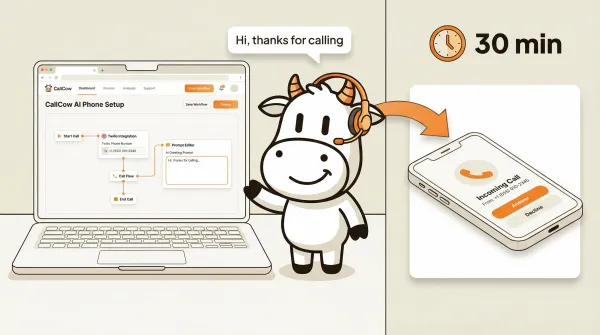
How to set up an AI phone answering service in under 30 minutes
Set up an AI phone answering service with CallCow. Connect Twilio, create a workflow, configure your prompt, test with a demo call, and go live.How to set up an AI phone answering service
An AI phone answering service is software that answers inbound calls using a voice AI agent, handles common questions, and takes action like booking appointments or transferring to a human. CallCow plans start at $29.99/month, while traditional human answering services usually cost more and need to be compared quote by quote. Setup means connecting your Twilio number, creating one workflow, adding your prompt, and making a test call before you publish it.
Table of contents
- What you need before you start
- Step-by-step setup guide
- Configuring your AI prompt
- Setting up call transfer
- AI answering service setup comparison
- Testing your setup
- Going further
- Pros and cons of AI phone answering
- Frequently asked questions
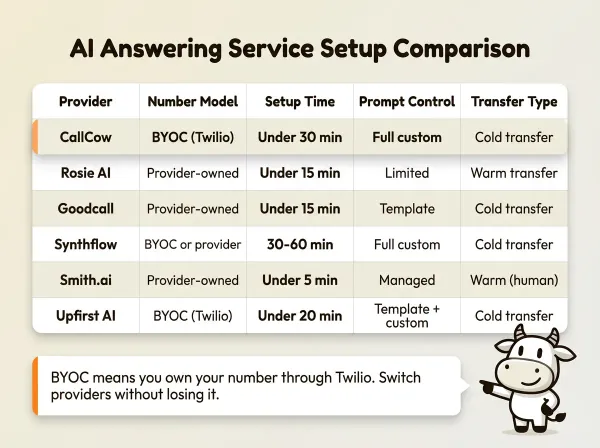
AI answering service setup comparison
Not all AI answering services approach setup the same way. The biggest differences are who owns the phone number, how much customization you get over the AI's behavior, and whether call transfer is supported.
| Setup factor | CallCow | Many provider-managed tools |
|---|---|---|
| Phone number model | BYOC with Twilio | Often provider-managed, but verify directly with each vendor |
| Prompt control | Custom workflow prompt | Varies widely by vendor |
| Call transfer | Cold/blind transfer | Varies widely by vendor |
| Trial model | 7-day trial | Varies widely by vendor |
| Setup tradeoff | More control and separate Twilio billing | Less infrastructure control, sometimes simpler onboarding |
BYOC means you buy the phone number through Twilio and own it. If you switch providers, the number goes with you. Provider-owned means the service controls the number, and leaving means losing it or porting it out.
Full prompt customization matters if you want the AI to follow specific business rules, handle edge cases, or sound a particular way. Template-based services work for simple use cases but fall apart when callers ask unexpected questions.
The full vendor comparison is in the AI phone answering service guide.
What you need before you start
You need three things before you configure anything. None of them cost money upfront.
1. A Twilio account and phone number
CallCow uses a bring-your-own-carrier (BYOC) model. You own the phone number through Twilio, and you manage the Twilio billing directly. This gives you full control over the number, and it means you are not locked into CallCow for phone service.
To get set up:
- Sign up at twilio.com. The free trial account works for testing.
- Go to Phone Numbers > Manage > Buy a number.
- Search by country, area code, or capabilities (Voice and SMS).
- Purchase the number and keep it handy. You will need it in CallCow.
The full phone number guide is at docs.callcow.ai/phone-number-guide.
2. Your Twilio API credentials
Find your Account SID and Auth Token on the Twilio Console dashboard. You will paste both into CallCow's settings to connect the platforms.
Keep your Auth Token secret. Treat it like a password.
3. A CallCow account
Sign up at callcow.ai. The free trial lets you test with verified phone numbers and limited concurrency.
Trial accounts have real limits. You can only call verified numbers, and you are capped at 4 concurrent calls. A Twilio Business Profile unlocks higher limits for documented features like transfer and broader production use. More on that in the call transfer section.
Step-by-step setup guide
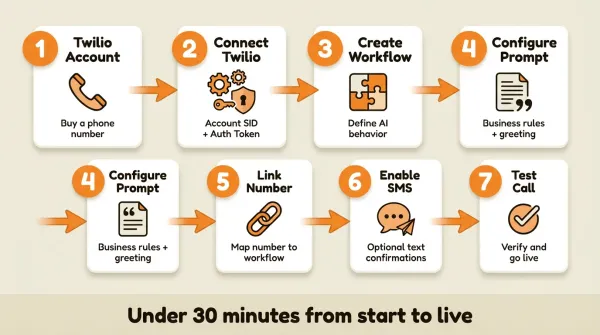
The whole process is usually quick if you already have a Twilio number. If you are creating a Twilio account from scratch, expect extra time for setup and verification. The fastest path is: connect Twilio, create one workflow, add a prompt, attach the number, and place a test call.
Step 1: Create your CallCow account
Go to callcow.ai and sign up. When the dashboard loads, stay in the onboarding flow and get your workspace ready for the Twilio connection.
There is a getting-started video on the docs page that walks through the full flow in about 5 minutes. If you prefer reading, keep going.
Step 2: Connect your Twilio account
From the CallCow dashboard, open Settings and go straight to the Twilio section.
- Paste your Twilio Account SID.
- Paste your Twilio Auth Token.
- Enter the Twilio phone number you purchased (in E.164 format, like
+14155552671). - Save the connection and wait for CallCow to validate the number.
CallCow validates the credentials against Twilio's API. If the connection succeeds, the number is available inside CallCow and ready to attach to a workflow.
Step 3: Create a workflow
Workflows define what the AI agent does on a call. Every phone number maps to a workflow.
From the dashboard:
- Click Workflows in the sidebar.
- Click Create Workflow.
- Give it a name. Something descriptive like "Main business line" or "After-hours receptionist."
- Pick the simplest live use case first so you can test it end to end.
The workflow builder is where you define the AI's behavior. CallCow has a visual editor for this. There is also a video walkthrough at youtube.com/embed/RGvOXRmI6sE if you want to see it in action.
Full disclosure: the workflow builder's UX is something we are actively improving. It works, but it is not the polished experience we want it to be yet. If you get stuck, book a free setup call at callcow.ai/schedule-custom and we will build the workflow with you.
Book a free setup call if you want help building the workflow
One setting worth configuring early: your LLM model. CallCow supports GPT 5.4 as a selectable model per workflow in the LLM Models settings. GPT 5.4 is the safest default for most use cases. In testing it produced fewer hallucinations, which matters when the AI is answering questions about your business or collecting caller data. There's a slight latency increase compared to earlier models, but for phone conversations where accuracy is more important than sub-second response times, the tradeoff is worth it.
You can also clone your own voice from a 30-second recording so the AI sounds like your brand instead of a generic default voice.
If you want to test it on your own number, CallCow has a trial at callcow.ai.
Step 4: Configure the AI prompt
The prompt tells the AI agent what business it represents, how to greet callers, what questions to answer, and what actions to take. This is the most important part of the setup.
In the workflow editor, find the Prompt or System Instructions field and enter the instructions the agent should follow on every call. Start with the exact action you want the workflow to handle today: answer FAQs, capture a lead, book an appointment, or transfer the caller. See the configuring your AI prompt section below for examples and best practices.
Step 5: Connect the phone number to the workflow
In the workflow settings:
- Select the Twilio phone number you connected in Step 2.
- Set the workflow to active if that toggle is available in your workspace.
- Save the workflow.
This is the handoff that makes the setup real: when someone calls that Twilio number, CallCow picks up and runs the workflow you just attached.
Step 6: Enable SMS (optional)
If you want the AI to send text messages to callers (for appointment confirmations, follow-ups, or when a call goes unanswered):
- In Twilio Console, go to Messaging > Services and create a Messaging Service.
- Add your Twilio phone number to the Sender Pool.
- Set the webhook integration to your CallCow webhook URL.
- Enable SMS in CallCow for your workflow.
Once SMS is enabled, you can also configure SMS Instructions. This lets the AI text the caller mid-conversation with links and information that are hard to communicate verbally: payment links, booking URLs, directions, or resource links. The AI sends the text while the caller is still on the line, so they get the information immediately without having to write anything down.
Twilio trial accounts can only send SMS to verified numbers. Upgrade to remove that restriction.
Step 7: Test with a demo call
Before going live, call your Twilio number from your own phone or use CallCow's browser calling test tool. The AI should pick up, identify itself as AI, and follow the workflow you just configured.
Call the demo number on our homepage to hear the AI in action.
If the call does not connect, check:
- Is the Twilio number correctly linked in CallCow?
- Is the workflow set to active?
- Is your test phone number verified in Twilio (if you are on a trial account)?
The full setup walkthrough with screenshots is at docs.callcow.ai/getting-started.
Configuring your AI prompt
The prompt controls how the AI sounds and what it does. A good prompt reads like a briefing document for a new hire. The AI sounds like a competent receptionist who knows your business. A prompt that reads like a script produces robotic, unhelpful responses.
What a good prompt includes
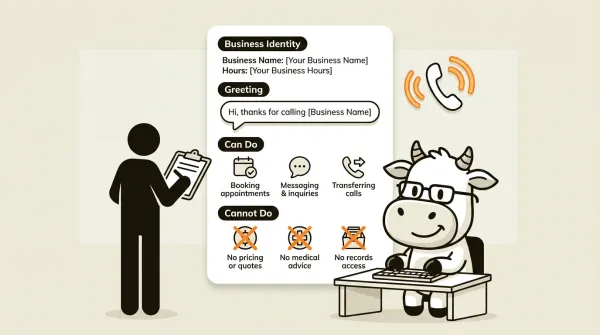
Write your prompt as if you are briefing a new hire on their first day. Cover these elements:
- Business identity: Name, type of business, location, hours of operation.
- Greeting: How the AI should answer. Keep it natural. "Hi, thanks for calling [Business Name]. This is [Agent Name], how can I help you?"
- What the AI can do: Answer common questions, book appointments, take messages, transfer calls.
- What the AI cannot do: Pricing negotiations, technical support details, legal advice.
- Tone: Professional but friendly. Conversational, not robotic.
- Call resolution: What happens at the end of the call. Should the AI confirm next steps? Send a text summary?
Example prompt for a dental clinic
You are the receptionist for Bright Smile Dental, a family dental clinic in Austin, TX. We are open Monday to Friday, 8 AM to 6 PM, and Saturday 9 AM to 1 PM.

Greet the caller warmly. Ask how you can help.

You can:
- Answer questions about our services (cleanings, fillings, whitening, Invisalign consultations, emergency appointments)
- Check our availability and book appointments
- Take messages for the office manager
- Transfer the caller to the front desk if they specifically ask

You cannot:
- Provide medical advice or diagnose symptoms
- Give exact pricing (say "we would be happy to discuss pricing during your visit")
- Access patient records
- Confirm or cancel existing appointments without verifying the caller

If the caller wants to book, ask for their preferred date and time, their name, and their phone number. Confirm the details back to them before ending the call.

If no appointments are available, offer to take a message and say someone from the office will call them back within one business day.

Our address is 1234 Lamar Blvd, Austin, TX 78703. Our website is brightsmile.example.com.

Always identify yourself as an AI assistant at the start of the call.
The AI always self-identifies as AI at the start of the call. This is not optional in CallCow and cannot be disabled. We built it this way on purpose. Callers should know they are talking to an AI.
The prompt also sets clear boundaries. Telling the AI what it cannot do is more important than telling it what it can. An AI that confidently gives wrong medical advice is worse than one that says "I cannot help with that, let me transfer you."
Prompt tips that actually work
Write in plain language. Do not use bullet points or numbered lists in the prompt itself unless the AI needs to read them aloud. The AI processes natural language instructions, not structured data.
Be specific about your business hours, services, and policies. Vague instructions produce vague behavior. "Handle appointment bookings" means something different than "Ask for their preferred date and time, check against our calendar, confirm the booking, and send a text confirmation."
Keep the prompt under 500 words. Longer prompts do not make the AI smarter. They make it slower to respond because it has to process more context on every turn.
Test the prompt with real scenarios. Call your number and pretend to be a customer asking about pricing. Then call again and pretend to be someone who wants to book. Then call and ask something the prompt says the AI cannot answer. Finally, call and hang up immediately to see how the AI handles short interactions. Fix the prompt based on what happens.
If your business uses Calendly, Cal.com, TidyCal, Trafft, Google Calendar, or Outlook Calendar, you can connect those in the workflow and the AI will check real availability when booking. Google Calendar and Outlook are currently beta. TidyCal excludes paid bookings, and Trafft books the first available employee rather than a specific staff member. Read the AI appointment scheduling guide for the full walkthrough.
Setting up call transfer
At some point, a caller will want to talk to a real person. CallCow supports call transfer, but there is a prerequisite you need to know about.
The Twilio Business Profile requirement
Call transfer in CallCow requires a Primary Customer Profile (also called a Trust Hub profile) on your Twilio account. Without it, Twilio will not allow the call transfer to go through.
Setting up a Business Profile usually takes a few business days because Twilio reviews your business information and verifies your identity. The process is documented at twilio.com/docs/trust-hub.
What kind of transfer CallCow supports
CallCow supports cold transfer (also called blind transfer). The AI tells the caller it is transferring them, then routes the call to a destination number. The caller hears hold music or ringing while the destination picks up.
CallCow does not support warm transfer, where the AI stays on the line to introduce the caller before handing off. That capability is not documented today.
Setting up a static transfer
For most small businesses, a static transfer number is enough. Every call that needs a human goes to the same phone number.
- Go to the Integrations tab in CallCow.
- Create a Call Transfer integration.
- Enter the destination phone number (the human who will pick up).
- In your workflow settings, enable Call Transfer and select the integration you just created.
Setting up dynamic transfer
If you need to route calls to different people based on who is calling or what they need, use the Dynamic Transfer URL.
The AI sends a POST request to your endpoint with the caller's phone number:
{ "number": "+15551234567" }
Your server responds with the destination number:
{ "transferNumber": "+15559876543" }
This lets your server choose the destination number based on your own logic, such as department, location, or time of day. The routing logic lives on your server. CallCow just executes the transfer number it receives.
If your server does not respond or returns an error, CallCow falls back to the static transfer number. Always set a static fallback.
What happens when the transfer target does not answer
Failed-transfer behavior should be tested in your own workflow before you rely on it operationally. If post-failure handling matters, verify it during setup and document the fallback in your prompt.
For more on call transfer, see the transfer to human guide or the docs at docs.callcow.ai/transfer-to-human.
Testing your setup
Do not skip this step. Call your Twilio number from your personal phone and run through these scenarios:
Test 1: Basic greeting
Call the number. Does the AI answer? Does it identify itself as an AI? Does it use your business name?
If the call does not connect, go back to Step 2 and verify the Twilio connection. Check that the phone number in CallCow matches the number you purchased in Twilio, including the country code.
Test 2: Common questions
Ask a question your customers ask frequently. "What are your hours?" "Do you take walk-ins?" "How much does a cleaning cost?"
The AI should answer accurately based on what you wrote in the prompt. If it gives wrong information, edit the prompt to be more specific. Do not blame the AI for bad prompt engineering.
Test 3: Appointment booking (if applicable)
Try to book an appointment. If you connected a calendar integration (Calendly, Cal.com, or Google Calendar), the AI should check real availability and confirm a time slot. If no calendar is connected, the AI should take the caller's preferred time and name as a message.
Test 4: Call transfer
Ask to speak to someone. The AI should initiate a transfer. If you have a Business Profile on Twilio, the call will route to your destination number. If you do not have a Business Profile yet, the transfer will fail. That is expected. Get the profile set up, then test again.
Test 5: Edge case
Say something the prompt does not cover. Ask a weird question. Be vague. The AI should handle it gracefully, not freeze or give a generic error. If the AI goes off the rails, add a fallback instruction to your prompt like "If you are not sure how to answer, say you will have someone from the office follow up and take the caller's name and number."
Browser-based testing
Use live test calls on numbers you control as your main verification path. If your workspace exposes any extra testing tools, treat them as convenience features rather than the core setup flow.
Going further
Once your AI answering service is running, these features are worth setting up next:
Forms: CallCow's forms feature collects structured data during calls - name, email, phone, service type - and sends it to your CRM via webhook. Set up form templates in the workflow builder.
Voicemail Transfer: The recommended best experience. Configure your carrier to forward missed calls to CallCow AI. Preserves your personal touch while ensuring zero missed calls.
Inbound Contacts: Every caller is automatically saved as a contact - phone, name, email, notes - building a lead database passively.
Website widgets and Agent Calling API: If you want the same workflow available off the phone line, you can embed a CallCow widget on your site or trigger calls programmatically through the Agent Calling API.
Pros and cons of AI phone answering
Pros
- Available 24/7, including holidays and weekends
- Consistent quality: the AI follows your prompt exactly every time
- Cost is predictable (monthly subscription plus Twilio per-minute fees)
- Scales with concurrent calls, no scheduling needed
- You own your phone number through BYOC, so you are not locked in
Cons
- Cannot handle nuance the way a trained human can, regardless of prompt quality
- Cold transfer only in CallCow, no warm handoff where the AI briefs your team
- Call transfer requires a Twilio Business Profile, which takes days to approve
- Setup takes technical effort: Twilio account, workflow configuration, prompt writing
- The AI is only as good as the prompt you write, and prompt engineering takes iteration
Frequently asked questions
What is the best AI answering service?
The best AI answering service depends on what you need it to do. For small businesses that want to answer calls, book appointments, and capture leads, CallCow is one option among a growing set of AI phone answering tools. CallCow differentiates on the BYOC model (you own your Twilio number), structured form collection during calls, and the Prompt-to-Call API for developer integrations. If you want someone else to manage the phone number entirely, services like Rosie or Smith.ai handle that for you. Read the AI phone answering service guide for a full comparison.
Can you use AI to answer phone calls?
Yes. With CallCow, you connect a Twilio number to a workflow and the AI answers, processes what the caller says, and responds conversationally. It can answer questions, book appointments, take messages, and transfer calls. The caller experience is similar to talking to a receptionist, though the AI will always identify itself as AI. Other vendors may bundle the phone layer differently, so verify the telephony model before you buy.
How much does AI phone answering service cost?
AI phone answering pricing varies a lot by vendor, packaging, and whether telephony is bundled. CallCow starts at $29.99/month, and under CallCow's BYOC model you also pay Twilio separately. For other vendors, verify current pricing on their site before treating any comparison as final. For a full pricing comparison, see the AI phone answering service cost breakdown.
How much does AI call assistant cost?
An AI call assistant costs roughly the same as an AI phone answering service because they are the same category of product. Entry-level AI call assistant pricing often starts in the double digits per month, but the real total depends on plan limits, integrations, and telephony costs. CallCow's starting plan is $29.99/month, with Twilio billed separately under BYOC. The best answering service for small business guide breaks down costs across nine providers.
CallCow came out of the same problem: I kept missing calls while building my previous company. Every missed call felt expensive. The AI tools I tried were either too limited, too awkward to set up, or too expensive once usage climbed. The version I wanted was simpler: keep your own Twilio number, write the workflow in plain language, and get something live without pulling in a developer.
If you want to try it, the trial is at callcow.ai. Or call the demo number on the homepage and talk to the AI yourself before signing up for anything.
Yiming Han is the founder of CallCow and writes about phone automation, missed calls, and the tradeoffs that show up when small businesses actually deploy voice AI.