How to add an AI voice agent website widget to your site
Add an AI voice agent website widget to capture leads through voice calls. Floating vs inline widgets, setup steps, and how they compare to chat widgets.How to add an AI voice agent website widget to your site
An AI voice agent website widget is an embeddable interface that lets visitors talk to your AI voice agent directly from your website. It works like a chat widget (think Drift or Intercom) but uses voice instead of text. Visitors click a button, start speaking, and the AI handles the conversation in real time.
We built the embed feature because most businesses already have a website. Adding a voice widget gives visitors a way to talk to you from any page. Your visitors don't need to pick up their phone or switch apps. They click, talk, and get answers.
This article covers how CallCow's website widgets work, how to set one up in a few minutes, where the standard widget is enough, and when voice is actually a better fit than chat or click-to-call.
Table of contents
- What a voice agent website widget is
- CallCow's embed options: floating and inline widgets
- How to add a voice widget to your site
- Pros and cons of website voice widgets
- Custom widget development
- Use cases by industry
- Voice widget vs chat widget vs click-to-call
- FAQ
- Get started with a voice widget
What a voice agent website widget is
Most websites have a chat widget in the bottom-right corner. You've seen them from Intercom, Drift, Zendesk, and a dozen others. A visitor types a question, a bot (or human) responds with text, and the conversation continues in a chat window.
A voice agent website widget works the same way, except the input is spoken. Your visitor clicks the widget, grants microphone access, and starts talking. The AI listens, processes what they said, and responds with its own voice. The entire conversation happens in the browser.
The difference matters most for high-intent visitors. If someone is comparing pricing, checking availability, explaining a time-sensitive problem, or deciding whether to book, voice usually carries more information than a short typed message. Tone, urgency, and follow-up questions come through naturally in speech.
Chat widgets have been the default for a decade. They still work well for simple text exchanges, but they have limits. People type slower than they speak, shorten details, and often avoid writing out a full situation. Voice reduces that friction when the conversation needs nuance.
Voice doesn't fit every page. It usually beats chat when the visitor has a real question to work through, not when they just want a quick link or doc. It usually beats click-to-call when the visitor is already on your site and would rather start talking immediately than leave the page, open their phone app, and wait for a human or phone tree.
The ai voice agent complete guide covers the full range of voice AI applications. This article focuses specifically on the website widget piece: how it works, how to embed it, and what it does for your business.
How it differs from callback widgets
Some platforms offer a "callback widget" that asks the visitor for their phone number and then triggers an outbound call from the AI. That's not the same thing.
A callback widget adds a step: the visitor gives their number, hangs up (or keeps browsing), and waits for the AI to call them back. Some percentage of those visitors will leave before the call arrives. The delay kills conversion.
A true voice widget keeps the visitor in the browser. The conversation starts immediately with no phone number required and no context lost. The visitor is already on your site, looking at your product or service, and can ask questions about what they see.
CallCow offers direct voice widgets that work in the browser. The AI handles the call right there on the page.
CallCow's embed options: floating and inline widgets
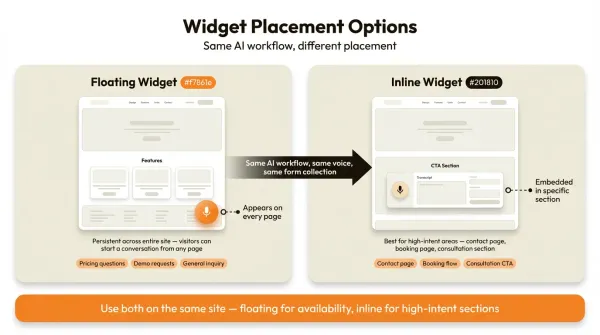
CallCow provides two standard widget types for embedding on your website: floating and inline. Both connect to the same AI workflows and use the same voice cloning and form collection features. The difference is placement, not a separate feature tier.
Floating widget
The floating widget sits in the bottom-right corner of your website, similar to how Intercom or Drift displays their chat bubbles. It shows a small button or icon. When a visitor clicks it, the widget expands into a larger panel with a voice interface.
In its closed state, the widget is unobtrusive. It doesn't block content or interrupt the browsing experience. In its open state, it provides enough space for the visitor to see the AI's status (listening, thinking, speaking) and interact naturally.
The floating widget works well as a persistent element across your entire site. Every page gets a voice entry point. A visitor reading your pricing page can click the widget and ask about enterprise plans. Someone on your testimonials page can ask to book a demo.
This is the most common choice for businesses that want voice available everywhere without dedicating page space to it.
Inline widget
The inline widget embeds directly into a specific section of your page. You place it wherever you want, and it renders as part of your page content rather than floating on top of it.
Inline widgets work best for dedicated call-to-action sections. Put one on your contact page, your booking page, or inside a "schedule a consultation" area. The widget becomes part of the page flow instead of an overlay.
You can use both widget types on the same site. A floating widget for general availability, and an inline widget in high-intent sections where you want to push visitors toward a conversation.
Both widget types connect to your CallCow workflows. The AI that answers through the widget is the same AI that handles your phone calls. Same voice, same knowledge base, same form collection logic.
What happens when a visitor uses the widget
When a visitor clicks the widget and starts talking, the AI follows the workflow you configured. It can answer questions, qualify leads, collect information, and route conversations. The visitor's audio streams through the browser to CallCow, which processes it through the workflow and streams the AI's response back.
Call data, transcripts, and any form fills are stored in your CallCow dashboard just like a regular phone call. Webhooks fire on completion, so you can push the data to your CRM or other tools. Make.com offers bidirectional integration: trigger calls from Make scenarios and receive call data via webhooks. Monday.com can trigger calls from new board rows and write call logs back. Zapier exists, but it is invite-only. SMS Instructions let the AI text callers links, booking URLs, or directions mid-call, which is useful any time a visitor needs something clickable instead of spoken out loud.
One thing to know: the AI always identifies itself as AI. That's a core part of how CallCow works and it can't be disabled. If that is a problem for your brand or workflow, treat it as a hard product constraint.
How to add a voice widget to your site
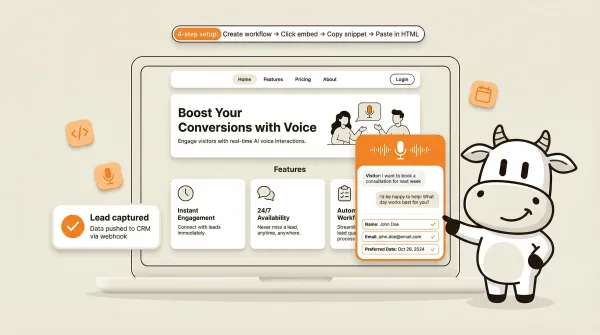
Setting up a CallCow website widget takes four steps. For the standard floating or inline widget, there's no backend work or API configuration. You usually don't need a developer either. If you need non-standard behavior or a deeper custom integration, that moves into consultation work.
Step 1: create your workflow
Before you can embed anything, you need a workflow for the AI to follow. A workflow defines what the AI says, how it responds to visitor questions, and what data it collects.
In CallCow's dashboard, create a workflow for your website interactions. You might want one workflow for general questions, another for demo requests, and a third for support. Or you might use a single workflow that handles everything.
If you haven't set up workflows before, the ai voice agent complete guide walks through the process. You define prompts, set up form fields for data collection, and configure how the AI handles different scenarios.
For website widget conversations, we recommend selecting GPT 5.4 as the LLM model for your workflow. It produces more accurate responses with fewer hallucinations in our testing, which matters when website visitors are evaluating your business in real time. There is a slight latency increase compared to earlier models, but for conversations that directly affect conversion, the accuracy tradeoff is worth it. You can set the model per-workflow in LLM Models settings.
Step 2: click "Embed on Website"
Open the workflow you want to embed. Inside the workflow page, you'll see an "Embed on Website" button. Click it.
This opens the embed configuration panel. CallCow generates the code snippet you need. Both the floating and inline widget options are available here, with separate code blocks for each. The embed documentation covers the standard embed flow, but it does not document a broad set of self-serve visual or behavioral customization controls.
Step 3: copy the snippet
Copy the embed code from the panel. It's a short JavaScript snippet that loads the widget on your page.
The code includes your workflow ID, so it knows which AI workflow to use when a visitor interacts with the widget. For standard installs, you should not expect a long list of supported snippet-level customization options.
Step 4: paste into your HTML
Paste the snippet into your website's HTML. For the floating widget, add it before the closing </body> tag on every page where you want the widget to appear. For the inline widget, paste it in the specific section where you want it to render.
If you use a CMS like WordPress, Shopify, or Webflow, you can usually add the snippet through a custom HTML block or a code injection setting in your theme. Most platforms have a "header/footer scripts" or "custom code" section that handles this.
That's it. Four steps, and a standard install usually only takes a few minutes.
If you want to try the widget on a real page, you can test it in the CallCow trial at callcow.ai.
What you need before starting
You need a CallCow account with an active workflow. You also need a connected phone number through Twilio (CallCow uses a BYOC model, meaning you bring your own Twilio account). The widget routes voice through your Twilio connection, so make sure your Twilio setup is complete before embedding.
If you haven't set up Twilio yet, the phone number setup guide covers the process. You'll need a Twilio Account SID, Auth Token, and a phone number provisioned through Twilio.
Trial accounts have some limitations. You can handle up to 4 concurrent calls, and you can only call verified numbers. For production use, you'll want a Twilio Business Profile, which removes these limits and enables features like call transfer.
Pros and cons of website voice widgets
Pros:
- Voice can capture more intent and urgency than text when visitors need to explain context, ask layered questions, or book quickly
- Standard widgets usually take a few minutes to install, with no backend or API work required
- Same AI workflow powers both website widgets and phone calls, no duplicate configuration
- Structured form data feeds directly into your CRM through webhooks
- Widget conversations can collect structured lead details through forms and push them out through completion webhooks without adding another chat tool
- Works outside business hours without paying premium rates for overnight staffing
Cons:
- Visitors must grant microphone access, which some will decline
- The AI always identifies itself as AI, and some visitors will not engage with a voice bot
- Browser-based voice quality depends on the visitor's internet connection and microphone
- CallCow only supports cold transfer, so escalating a widget call to a human has no warm handoff
- Requires a connected Twilio account (BYOC model) with associated per-minute costs
- Standard embed options are limited to floating and inline widgets; anything beyond that may require consultation
Custom widget development
The standard floating and inline widgets cover most use cases. But the product docs are intentionally light on self-serve customization details. Today, the documented offer is the two standard embed types plus custom widget work through consultation.
CallCow offers custom widget development through consultation. You can book a setup call at callcow.ai/schedule-custom and work with the team to build a widget that fits your requirements.
This is the right path if any of these apply:
- You need styling or placement changes that are not covered by the standard floating or inline embed
- You're embedding the widget into a React, Vue, or other SPA and need implementation help beyond dropping in the standard snippet
- You want conditional loading or launch behavior that is not part of the default embed flow
- You need to confirm whether your required context-passing or custom behavior is supported before launch
The standard widgets are designed to work out of the box. Custom development is for cases where out-of-the-box doesn't fit your stack. If your rollout depends on exact branding controls, advanced trigger rules, or a bespoke component experience, treat that as a consultation requirement rather than a guaranteed self-serve feature.
Use cases by industry
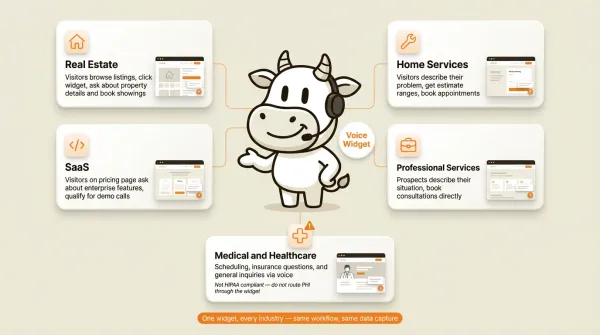
A voice widget on your website isn't a novelty feature. It's a lead-capture channel. Different industries use it in different ways.
Real estate
Real estate is the clearest use case for website voice widgets. Visitors browse listings, see a property they like, and want to know more. They could fill out a form and wait for a callback. Or they could click the voice widget and ask about the property right now.
The AI can answer questions about square footage, price, neighborhood, and availability. It can collect the visitor's contact information through forms and book a showing. If the visitor wants to talk to a human agent, the AI can transfer the call. Note that CallCow supports cold transfer only, meaning the AI hands off the caller directly without introducing them or briefing the human first.
The proof case here is straightforward: listing-page visitors often have specific, time-sensitive questions. Voice works better than chat when prospects want to ask about availability, price, timing, and next steps in one exchange. It works better than click-to-call when they are already browsing the property and can talk without leaving the page. Someone who says "I want to see this place tomorrow" is usually easier to qualify than someone who types "interested in this property."
The ai receptionist for real estate guide covers the full real estate use case, including phone-based AI answering.
Home services
Plumbers, electricians, HVAC companies, landscapers. Home service businesses live on leads. A visitor on your site has a problem, maybe a leaky faucet or a broken AC, and wants to know if you can help and when you can come.
A voice widget lets them describe their problem in their own words. The AI can ask clarifying questions and book an appointment if your workflow and scheduling setup support it. It works outside business hours too. This is a good example of voice beating chat: the caller can explain urgency and symptoms faster than they can type them. It can also beat click-to-call because the visitor gets an immediate response without leaving the site to place a phone call.
For home service businesses, the ai receptionist for home services article has more on the phone-based side of AI answering.
SaaS and software companies
SaaS companies use chat widgets for support and sales. A voice widget adds another channel. Visitors on a pricing page can ask about enterprise features. Users stuck on a setup step can get voice-guided help.
The best proof-oriented use case is high-intent sales qualification, not generic support. Voice tends to outperform chat when a buyer wants to explain their team, workflow, and timeline in one conversation. The AI can qualify leads by asking about company size, use case, budget, and timeline. It can book a demo call with a sales rep. The forms feature means all that qualification data gets captured and pushed to your CRM through webhooks.
Professional services
Law firms, accounting practices, consulting agencies. Professional services rely on consultations to convert prospects into clients. A voice widget on your services page lets prospects describe their situation and book a consultation without navigating to a separate scheduling tool.
This is another case where voice can beat chat: prospects usually need to explain context before they are ready to book. CallCow integrates with Cal.com, Calendly, TidyCal, and Trafft for appointment booking. Google Calendar and Outlook Calendar are native integrations (beta) that work without a third-party scheduling tool. The AI can check availability and book directly into your calendar where that integration supports it. If you use TidyCal, remember that paid bookings cannot be booked through the API. If you use Trafft, it books the first available employee rather than a specific person. The ai phone answering for law firms guide covers how legal practices use AI voice agents.
Medical and healthcare offices
Medical offices can use website voice widgets for appointment scheduling, insurance questions, and general inquiries. The AI handles the initial conversation and collects patient information through forms.
CallCow is not HIPAA compliant. For medical practices that handle protected health information, this matters. The widget can handle general scheduling and non-clinical questions, but you should not route PHI through it. The ai receptionist for medical offices article discusses what AI answering can and can't do in healthcare.
Voice widget vs chat widget vs click-to-call
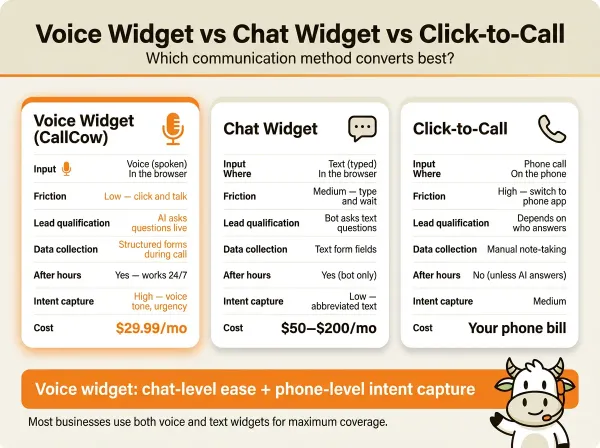
Most websites offer some form of visitor communication. The three main options compare like this.
| Feature | CallCow voice widget | Chat widget (Intercom, Drift) | Click-to-call |
|---|---|---|---|
| Input method | Voice (spoken) | Text (typed) | Phone call |
| Where conversation happens | In the browser | In the browser | On the phone |
| Visitor friction | Low (click and talk) | Medium (type and wait) | High (switch to phone app) |
| Lead qualification | AI asks questions live | Bot asks text questions | Depends on who answers |
| Data collection | Structured forms during call | Text form fields | Manual note-taking |
| Works outside business hours | Yes | Yes (bot only) | No (unless AI answers) |
| Captures visitor intent | High (voice tone, urgency) | Low (typed text, abbreviated) | Medium |
| Setup complexity | Low (copy snippet) | Low (copy snippet) | Medium (link phone number) |
| Cost | CallCow subscription + Twilio | Varies by vendor | Your phone bill |
The voice widget sits in a useful middle ground. Deployment is similar to a chat widget, but the conversation can feel closer to a real intake call when the visitor has context to explain. It works outside business hours like a chat widget, and it feeds data into your existing CallCow workflows, so you get transcripts, form fills, and webhook integrations without extra configuration.
Chat widgets aren't going anywhere. Text is still the right choice for sharing links, sending screenshots, skimming docs, or browsing quietly at work. Voice is better when the visitor needs to explain a situation, compare options, or move quickly toward a booking or qualified lead. Most businesses will end up using both.
Click-to-call is the oldest option and still works, but it forces visitors to leave your website and switch to their phone app. That context switch matters most for website visitors who are still evaluating and want instant answers without committing to a phone call. A voice widget keeps them on the page and starts immediately.
You can check pricing and test the widget flow at callcow.ai.
Who this is for (and who it's not)
Good fit:
- Businesses that get website traffic and want to add voice as a lead-capture channel without forcing visitors to switch to a phone app
- Real estate agencies, SaaS companies, and professional services firms where high-intent visitors browse listings or pricing pages and want immediate answers
- Teams already using CallCow for phone calls who want the same AI and workflows available on their website
- Teams whose requirements fit the standard floating or inline widget, or who are willing to use consultation for anything more custom
Not a good fit:
- Visitors who won't grant microphone permissions. Some users decline, and there's no fallback to text-based chat
- Medical practices handling PHI through the widget. CallCow is not HIPAA compliant
- Businesses needing warm transfer from a widget call to a human. Transfer is cold only
- Teams wanting a callback widget where the AI calls the visitor back. CallCow's widget works in the browser, not through a callback
- Teams expecting extensive self-serve widget customization without talking to CallCow first
FAQ
How do I embed an AI voice agent on my website?
Create a workflow in CallCow, open it, click "Embed on Website," copy the JavaScript snippet, and paste it into your HTML before the closing body tag. CallCow offers a floating widget (bottom-right corner) and an inline widget (embedded in a page section). Both use the same workflow and require no backend configuration. A standard setup usually takes a few minutes.
What is the difference between a voice widget and a chat widget?
A voice widget accepts spoken input and responds with voice. A chat widget accepts typed text and responds with text. Voice is usually stronger when visitors need to explain context, urgency, or multiple questions in one exchange. Chat is usually better when visitors want a quiet, skimmable, link-friendly interaction. Both can collect lead data, but voice does it through conversation rather than form fields.
Can AI voice widgets collect lead information?
Yes. CallCow's forms feature lets you define structured data fields (name, email, phone, custom fields) that the AI fills during the conversation. The visitor doesn't fill out a form. They answer the AI's questions naturally, and the AI extracts the data. Form fills are stored with the call record and sent via webhook to your CRM or other tools.
Do I need coding skills to add a voice widget?
No. The standard floating and inline widgets require copying a JavaScript snippet and pasting it into your HTML. No JavaScript knowledge needed. If you use WordPress, Shopify, or Webflow, you can add the snippet through your platform's code injection or custom HTML settings. If you need anything beyond the documented standard embed patterns, plan on doing a little custom work, and possibly getting developer help.
What are the best AI voice agent widgets for websites?
The best option depends on what you need: a ready-to-embed widget, a developer platform, or a fully custom build. When you compare tools, test whether they support true in-browser voice, the handoff model you need, and the automation path you plan to use after the conversation. For CallCow specifically, the documented offer is a floating widget and an inline widget tied to the same workflow system as your phone calls. Test CallCow's widget free for 7 days at callcow.ai.
Does the voice widget work on mobile?
The widget runs in the browser, so it is intended to work on modern desktop and mobile browsers with microphone access. In practice, you should still test it on the devices and browsers your audience actually uses before rolling it out site-wide.
Get started with a voice widget
A voice widget on your website can turn high-intent visitors into conversations and conversations into leads. It works around the clock, captures data through structured forms, and feeds everything into your existing workflow through webhooks.
The setup is four steps: create a workflow, click embed, copy the snippet, paste it into your HTML. No developer required for the standard floating or inline widget.
If you need deeper customization, treat that as a consultation-led project, not a built-in self-serve promise.
If you want to test it on your own number, CallCow has a trial at callcow.ai. Create a workflow, embed the widget on your site, and try it with real visitors.
Yiming Han is the founder of CallCow and writes about phone automation, missed calls, and the tradeoffs that show up when small businesses actually deploy voice AI.